
Nginx Vulnerability Alerts and One-Click Upgrade
The nginx installed by the panel (when you enable HTTPS on the master, turn on “steal self” on a server, or add a website) is compiled from source, so it doesn’t get patched by system updates. When nginx has a security vulnerability, the panel flags the affected master and servers and offers a one-click upgrade.
Where the vulnerability data comes from
Section titled “Where the vulnerability data comes from”- The panel ships with built-in nginx security advisory data covering published vulnerabilities that affect 1.25.1 and later, each with its affected version range and fixed version.
- The master checks online for updates every 12 hours and replaces the built-in data with newer data when available. So when a new vulnerability is published, you’ll see the alert without upgrading the master.
- Whether an nginx is affected is judged by its version number only.
The upgrade target is the newer of the latest mainline release on nginx.org and the recommended version in the advisory data. If the master can’t reach nginx.org, the recommended version is used. Upgrades only go up, never down.
The master’s nginx
Section titled “The master’s nginx”Open the “Certificates” page; the master nginx status is shown at the top:
| Shows | Meaning |
|---|---|
| Master nginx X is affected by N published vulnerabilities | Lists the CVE IDs (the first 6 by default; click “N more…” for the rest), with an “Upgrade to X” button |
| Master nginx X is older than the recommended version Y | No known vulnerability hit, but outdated; can be upgraded the same way |
| Master nginx is already X | Shown after an upgrade completes |
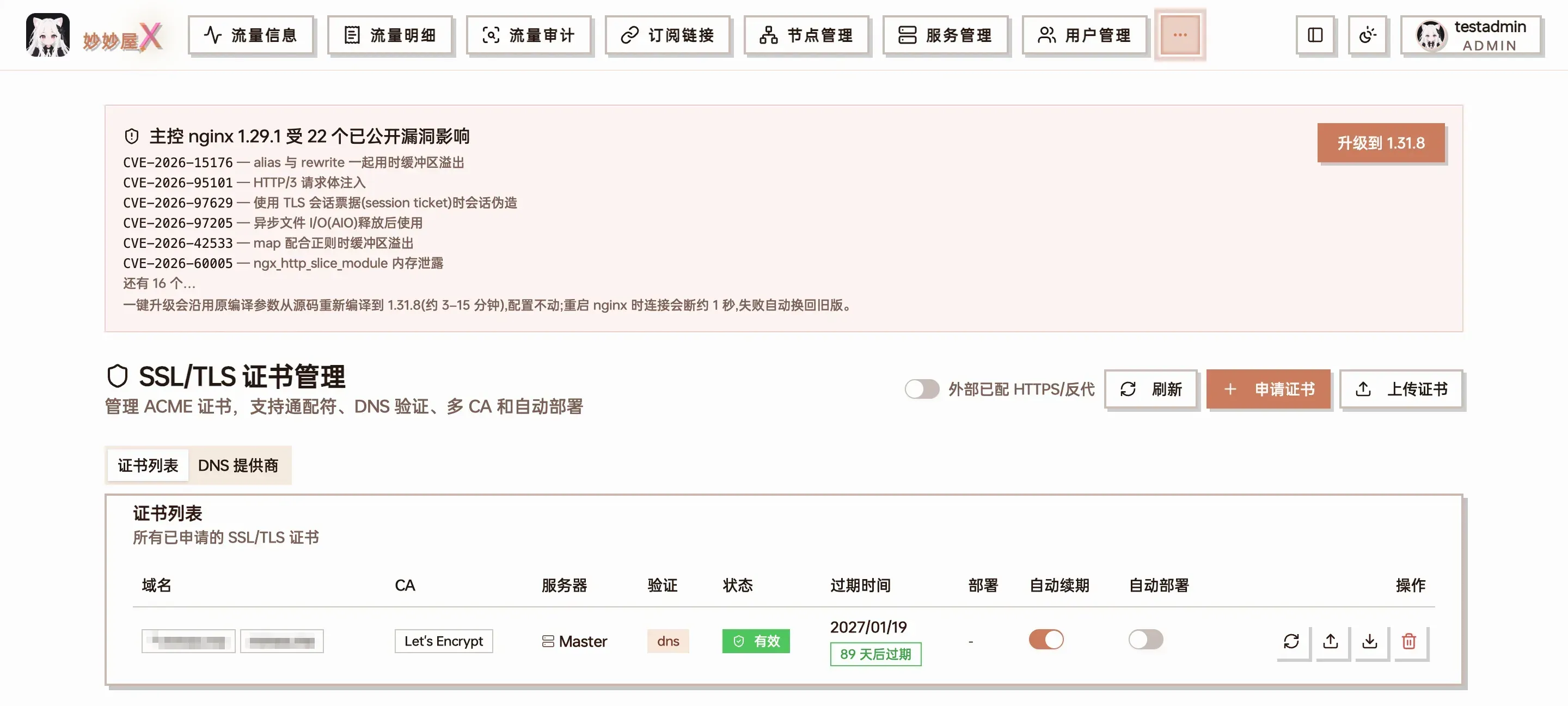
Top of the Certificates page: the CVEs the master nginx is affected by (first 6 by default) and the “Upgrade to X” button
The card is hidden when there are no vulnerabilities and the version isn’t below the recommended one, and also when the master has no nginx (HTTPS not enabled).
After clicking “Upgrade to X”:
- The upgrade runs in the background on the master, and the dialog streams the log. Closing the dialog doesn’t stop the upgrade; when you return to the page it shows the progress or result.
- The panel itself is served over HTTPS by this nginx, so the page briefly loses connection when nginx restarts and recovers within a second or two.
nginx on other servers
Section titled “nginx on other servers”Banner on the Servers page
Section titled “Banner on the Servers page”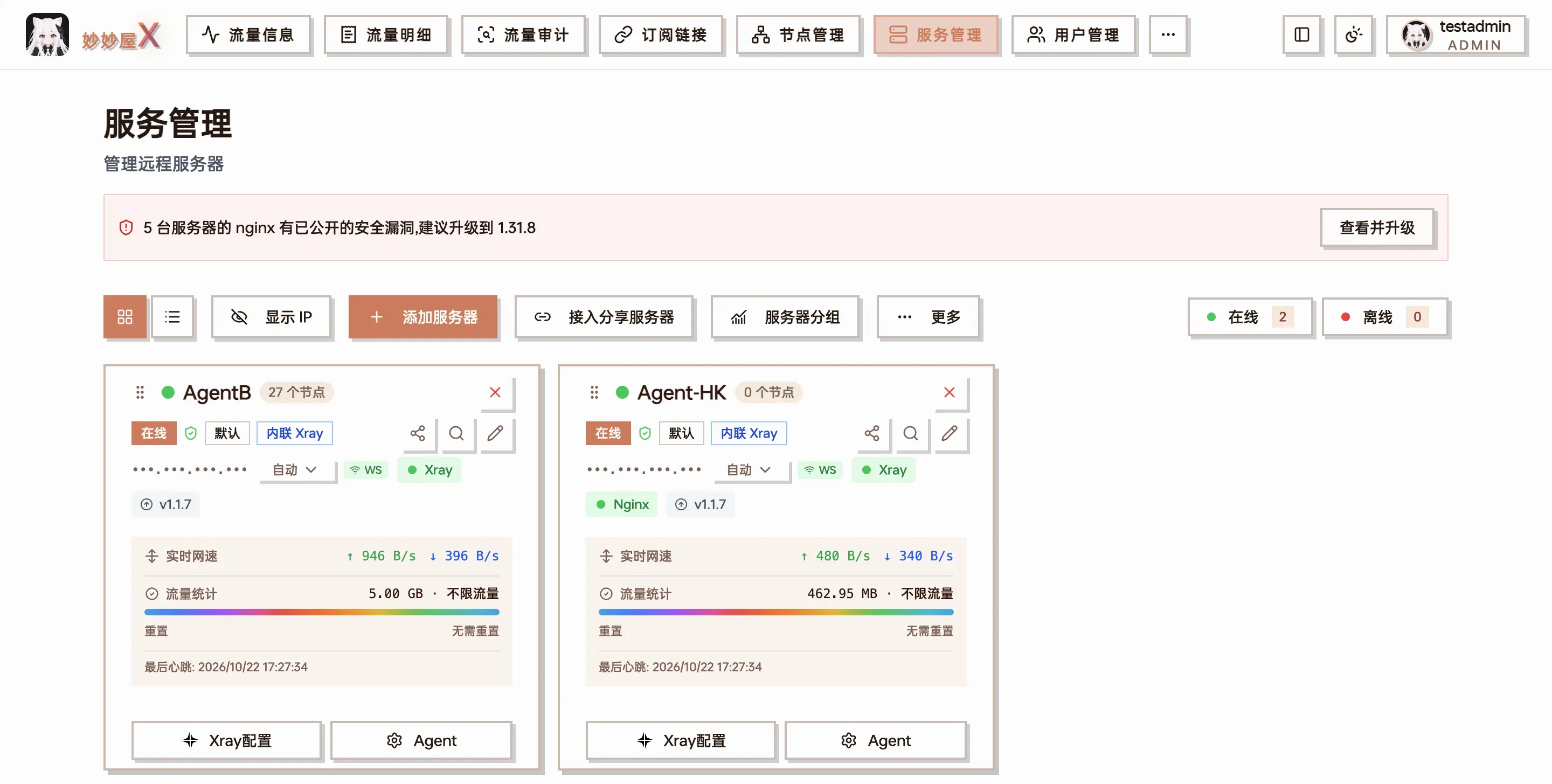
The nginx vulnerability banner at the top of the Servers page
When any server’s nginx is affected, a banner appears at the top of the “Servers” page: “N servers have nginx with published security vulnerabilities; upgrading to X is recommended”. Click “View & upgrade” to open the list:
- One row per server, showing the current version, the number of vulnerabilities hit or “No known vulnerabilities”, and the reason if it can’t be upgraded.
- The master’s row says to upgrade the master nginx on the “Certificates” page.
- Upgrade a single server with its “Upgrade” button, or tick several (“Select all upgradable”) and click “Batch upgrade”. Batch upgrades run one server at a time, each showing “Pending / Upgrading / Upgraded / Failed”; one failure doesn’t stop the rest.
- “Recheck” re-checks all online servers right away.
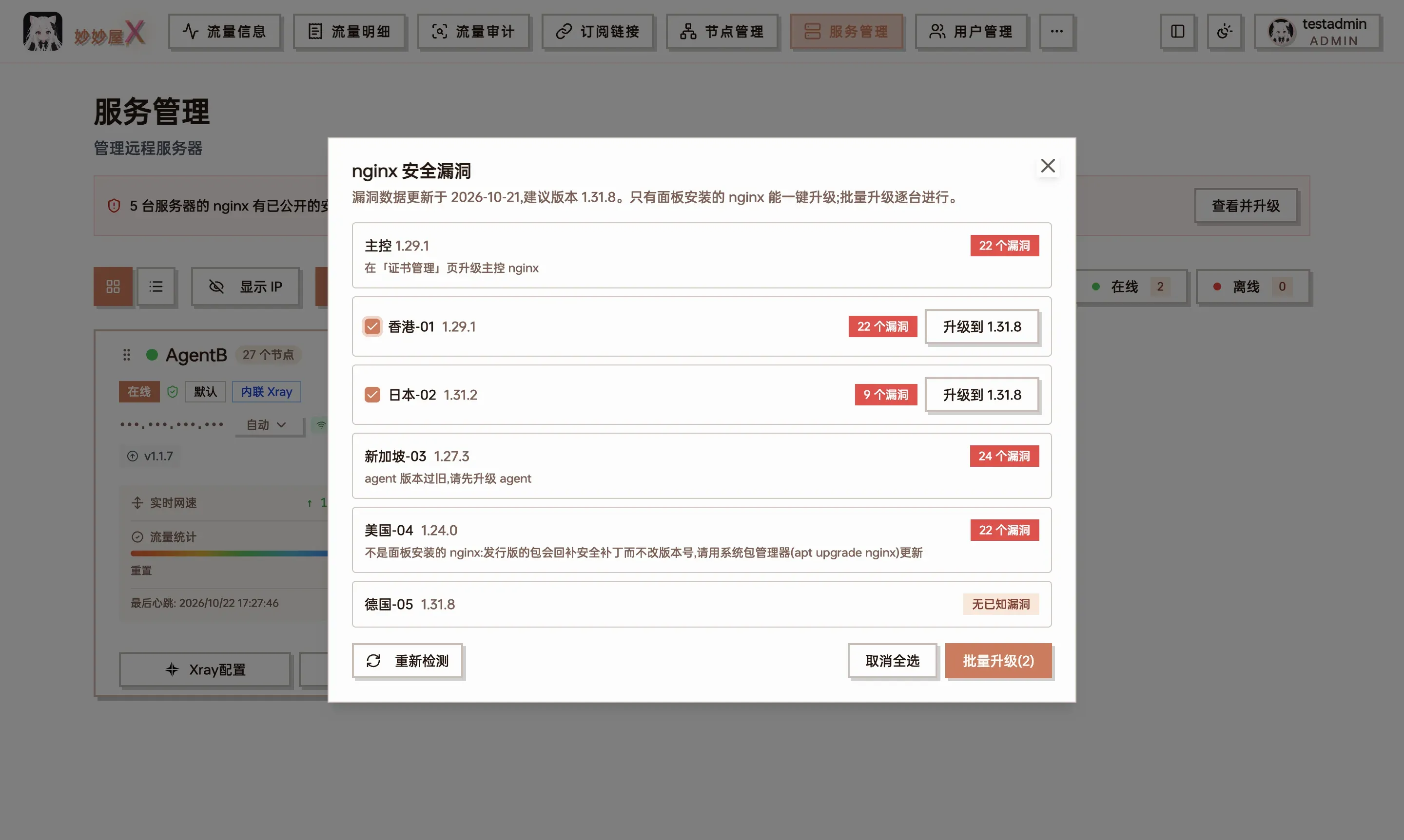
The “View & upgrade” list: upgradable servers can be upgraded one by one or ticked for a batch upgrade; the others show why they can’t
A single server
Section titled “A single server”You can also check and upgrade an individual server directly:
- Servers with external Xray: the server card’s “Agent” menu → “Service management”, in the nginx section of the “Remote server management” dialog.
- Servers with embedded Xray (no “Service management” menu): “Agent” → “Websites”, in the nginx status section. See Nginx Websites.
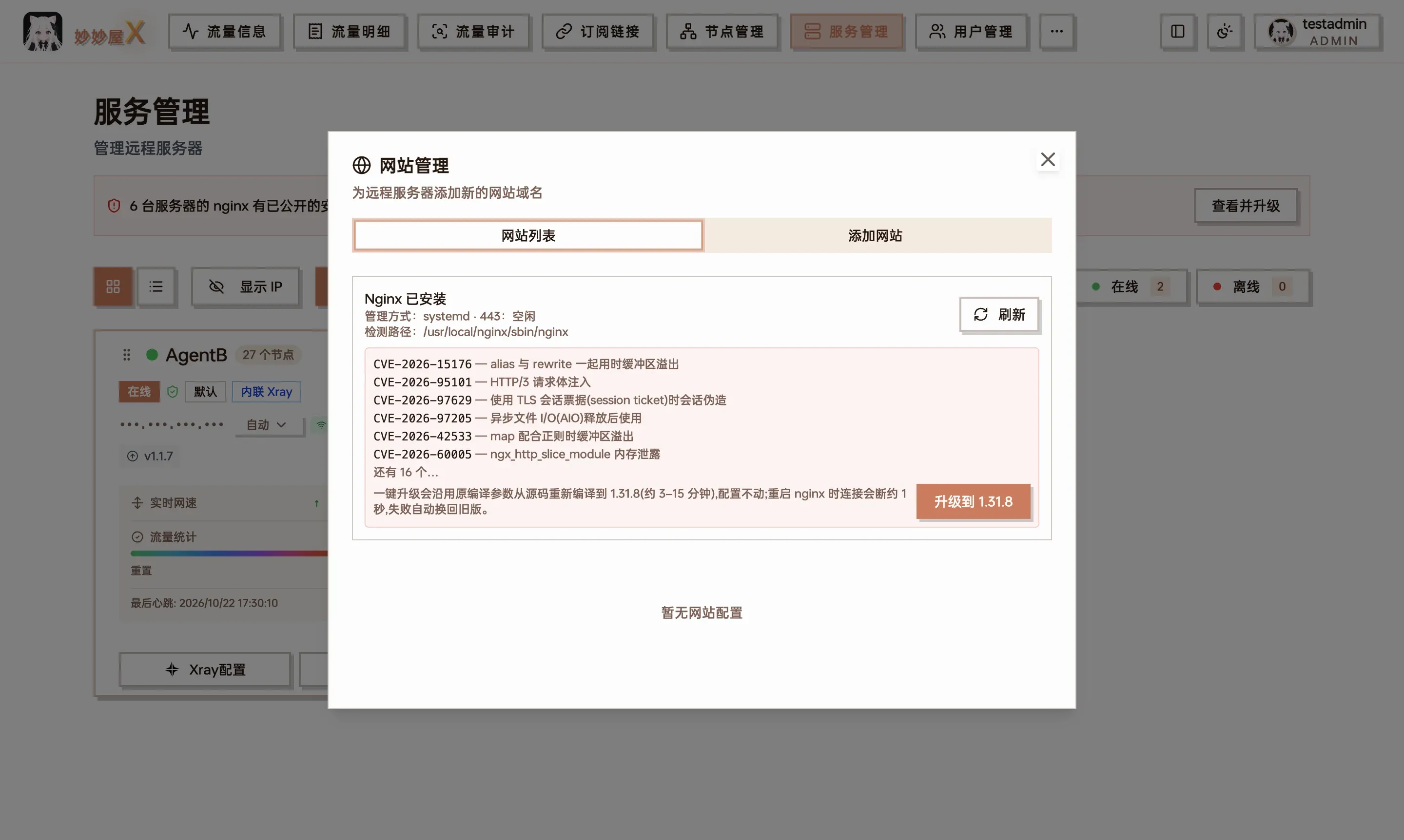
A server with embedded Xray: “Agent” → “Websites” lists the CVEs under the nginx status, with an upgrade button
What the upgrade does
Section titled “What the upgrade does”The one-click upgrade recompiles nginx from source on the server:
- It reads the current nginx’s build arguments (
nginx -V) and compiles the target version with the same arguments and modules. If the nginx-acme dynamic module is used, it’s rebuilt too (dynamic modules must match the main binary’s version). - Config files, websites and certificates are left untouched.
- After swapping in the new binary it runs
nginx -t; if that fails the old binary is restored. If nginx doesn’t come back after the restart, the old version is restored and started again. - Existing connections drop for about 1 second when nginx restarts; clients reconnect automatically.
Depending on the machine, it takes from tens of seconds up to about 15 minutes; the log reports progress every 20 seconds. A backup of the previous binary is kept (only the most recent one).
nginx that can’t be upgraded with one click
Section titled “nginx that can’t be upgraded with one click”Only nginx installed by the panel under /usr/local/nginx gets an upgrade button. Otherwise only the reason is shown:
| Message | Cause and what to do |
|---|---|
| Not installed by the panel | A distribution nginx installed with apt / yum etc. Distributions backport security fixes without changing the version number, so version-based checks would give false alarms. Update it with the system package manager (e.g. apt upgrade nginx) |
| Container nginx is updated with the image | Docker deployments of the master or a server: pull the new image and recreate the container |
| Same host as the master | This server shares the master’s nginx; upgrade the master nginx on the “Certificates” page |
| Agent too old, upgrade the agent first | Older agents can’t upgrade nginx; use the one-click Agent upgrade on the “Servers” page first |
| nginx is being installed or upgraded | Wait for the current install or upgrade to finish |
| One-click upgrade isn’t supported on this system | Only Linux servers are supported |
| Server offline / can’t read the nginx version / check failed | Click “Recheck” once the server is online |
The upgrade failed. Does nginx still work? Yes. If the new version fails the config check or fails to start, the old version is restored automatically; the reason is in the upgrade log. Common causes are the server failing to download the nginx source (restricted network) or too little memory to compile.
Still flagged after upgrading? Click “Recheck”. Results are cached briefly, and right after the master restarts, before agents reconnect, a server may temporarily show “Not checked”.