
Node Speed Test
Try it: node speed test
Section titled “Try it: node speed test”7 mock nodes — select any → start test → latency / speed fills in live. All local, no network calls.
| Node | Real latency | Download | Egress IP | Status | |
|---|---|---|---|---|---|
🇭🇰 香港 GoMami - HKT hk1.example.com | — | — | — | — | |
🇭🇰 香港 GoMami - Trojan hk1.example.com | — | — | — | — | |
🇺🇸 美国 Megabox - Reality us1.example.com | — | — | — | — | |
🇯🇵 日本 Pulse - Hy2 jp1.example.com | — | — | — | — | |
🇸🇬 新加坡 LightNode sg1.example.com | — | — | — | — | |
🇩🇪 德国 Hetzner - Reality de1.example.com | — | — | — | — | |
🇰🇷 韩国 KT - VLESS kr1.example.com | — | — | — | — |
Overview
Section titled “Overview”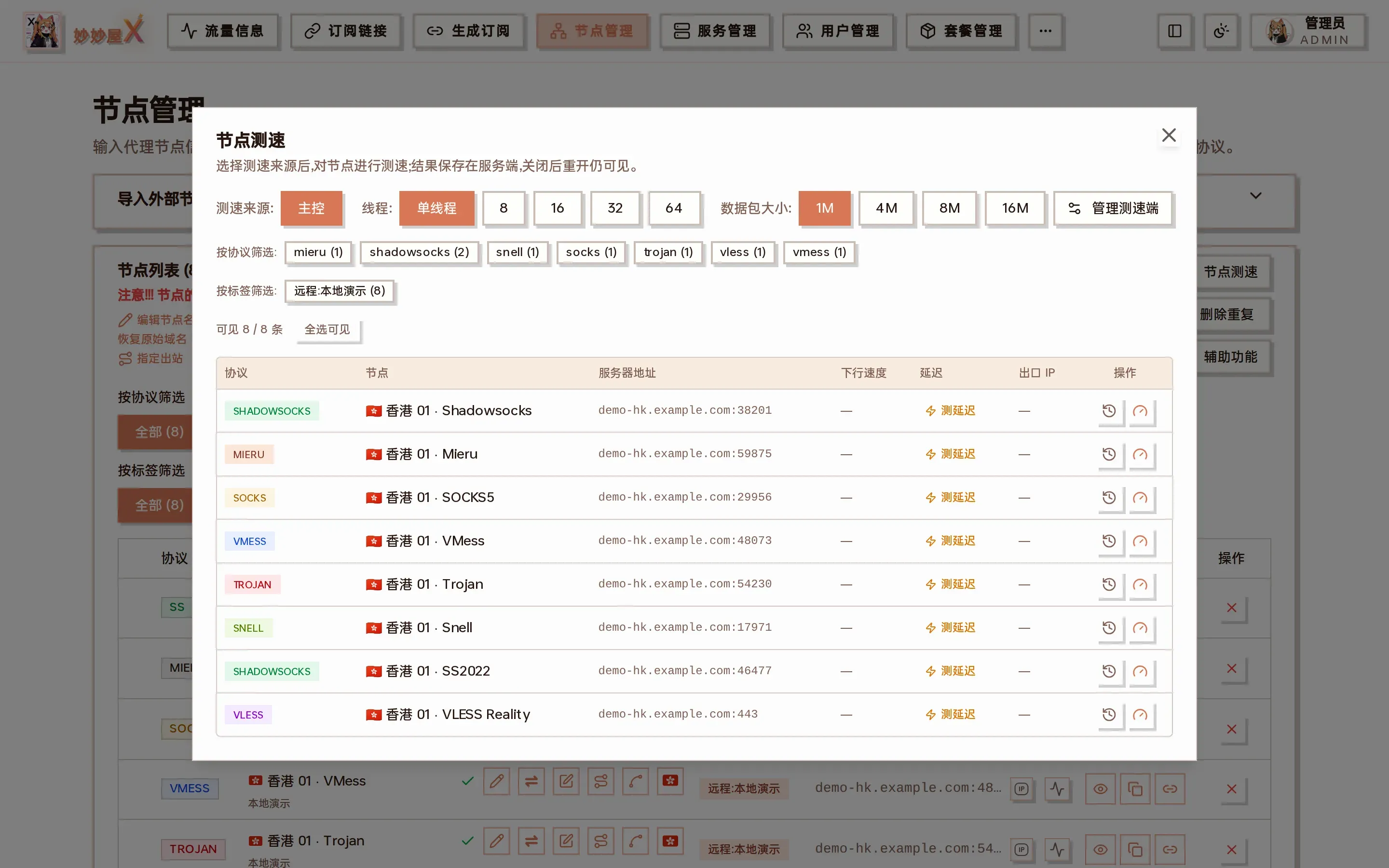
The real workbench in the master: choose the source (master / home endpoint), threads and packet size at the top; one node per row with speed test, latency test and exit IP
Node speed testing uses the mihomo core to measure actual download throughput and latency through single-node proxies. Test source, thread count, and test type can be freely combined, with results saved on the server for historical review.
Master Local
Section titled “Master Local”The master automatically downloads the mihomo core and tests speed from the master’s network environment. Works out of the box, suitable when the master is deployed at home or on the target network.
Home Speed Test Endpoint
Section titled “Home Speed Test Endpoint”Run a speed test endpoint on your home computer/server that connects to the master via reverse WebSocket, testing speed from a real home network perspective. Suitable when the master is in a data center but you want to know actual home exit speeds.
Two Test Types
Section titled “Two Test Types”Speed Test (Download + Latency)
Section titled “Speed Test (Download + Latency)”Downloads a large Google file through the proxy for about 8 seconds, calculating Mbps from actual bytes/time; also runs a single www.gstatic.com/generate\_204 latency test.
Trigger: Click the inline Gauge icon (orange) or the top “Batch Speed Test” button.
Real Connection Latency
Section titled “Real Connection Latency”Only runs Cloudflare 204 multi-sampling (cp.cloudflare.com/generate_204), takes the average of the fastest 2 out of 3 samples, removing cold-start first packet. No file download, results in seconds.
Trigger: Click the Zap icon button in the latency column. Click again to re-test.
Usage Steps
Section titled “Usage Steps”Start Speed Test
Section titled “Start Speed Test”- Go to “Node Management”, click the “Node Speed Test” button at the top to open the speed test workbench.
- Select the test source at the top (default “Master Local”; if you’ve configured a home test endpoint, you can select it). The selection is saved in browser local storage and auto-restored next time.
- Select thread mode (single/multi-thread, 8 concurrent): single thread shows worst-path performance; multi-thread aggregates bandwidth, closer to actual available bandwidth. Thread selection is also cached locally.
- Each table row shows protocol / node name / server / speed / latency / exit IP.
- Click the inline Gauge icon for speed test (includes latency).
- Click the Zap button in the latency column for real connection latency (Cloudflare 204); tested values show ms, click again to re-test.
- Check multiple + click top “Batch Speed Test” to run multiple speed tests at once.
- Speed tests are asynchronous: clicking returns immediately, shows spinner while running, auto-refreshes results on completion (1.5s polling, near-instant response). Results persist even if you leave and return.
- Click inline “History” to view the node’s historical speed test records.
The speed test workbench collapses to a floating button on the right side when clicking outside or pressing Esc (preventing accidental closure and lost progress). Click to re-expand; click the X in the top right to actually close. Re-opening returns to the main view (not stuck on the “manage test endpoints” subpage).
Configure Home Speed Test Endpoint
Section titled “Configure Home Speed Test Endpoint”-
In the speed test workbench, click “Test Endpoint Management” -> enter a name -> click “Create” to get a one-time pairing token and one-click install commands (Linux/macOS + Windows). The token is shown only once - be sure to copy and save it first.
-
Run the command on your home machine:
# Linux / macOScurl -fsSL <脚本URL>/install.sh | bash -s -- \-master https://你的主控.example.com -token <令牌># Windows PowerShellirm <脚本URL>/install.ps1 -OutFile install.ps1.\install.ps1 -Master https://你的主控.example.com -Token <令牌> -
The test endpoint automatically connects to the master via reverse WebSocket (WSS) after startup - no public IP needed at home. Once connected, it appears as “Online” in the test source list, select it to use.
-
The test endpoint auto-reconnects after disconnection. When marked “Offline”, it cannot be selected (already-selected will auto-fallback to master local).
Test Endpoint Capabilities
Section titled “Test Endpoint Capabilities”The home speed test endpoint has the same capabilities as master local: download speed test + real connection latency test + single/multi-thread switching + exit IP display. All capabilities are dispatched through the same WebSocket reverse connection, with results written to the master’s history table.
The speed test endpoint binary is released at mmwX-plugins releases , supporting Linux / Windows / macOS. The one-click install script automatically downloads the platform-specific binary and configures systemd (Linux) or auto-start (Windows).
Typical Scenarios
Section titled “Typical Scenarios”| What You Want to Know | Choice | Explanation |
|---|---|---|
| Max bandwidth of node at master’s data center | Master + Multi-thread + Speed Test | Aggregates 8 download streams, approaches physical bandwidth limit |
| How fast single-stream apps (video/file copy) can run | Master + Single-thread + Speed Test | Reflects real speed of a single TCP connection under congestion control |
| How stuttery YouTube is at home | Home Test Endpoint + Multi-thread + Speed Test | Tests from home exit through proxy, closest to actual user experience |
| Just want to quickly check latency without waiting 8s for download | Click Zap button in latency column (Real Connection Latency) | 3 Cloudflare 204 samples, average of fastest 2, results in 2-4 seconds |
| Verify exit IP is as expected | Run any speed test, check the “Exit IP” column | Real outbound IP echoed through the proxy |
All tasks within the same test source (master or a specific test endpoint) run serially to avoid bandwidth contention causing inaccurate results; batch testing many nodes takes longer.
Speed tests default to time-based (about 8 seconds) rather than fixed size, so slow nodes won’t timeout because bytes weren’t fully downloaded.
Real connection latency uses Cloudflare 204 (global edge nodes) with broader coverage than gstatic; the first test requires mihomo cold start, so sampling removes the slowest one for more stable results.
Node speed testing is a PRO feature that requires a valid license.
History records accumulate per node; click History in the node row to view; supports sorting by speed/latency/time.