
Cloudflare Turnstile
What is it
Section titled “What is it”Cloudflare Turnstile is CF’s free captcha service — no images to click, invisible to most users. It guards the login form: only after the token validates does the password check happen, dramatically reducing brute-force success rate.
MiaomiaowuX supports Turnstile but doesn’t require it. Both keys must be filled in System Settings to enable; either empty → auto-skip. Existing installs upgrade safely.
Prerequisites
Section titled “Prerequisites”A Cloudflare account (free tier is enough — you do NOT need to move your domain DNS to CF; Turnstile works standalone).
Step 1 — Create a Site in CF Dashboard
Section titled “Step 1 — Create a Site in CF Dashboard”Log into Cloudflare Dashboard, click ‘Turnstile’ in the sidebar, then ‘Add Site’. The table below covers the recommended fields:
1. Log in to dash.cloudflare.com
Section titled “1. Log in to dash.cloudflare.com”Sign in with your CF account, or register a new one (free).
2. Open the Turnstile page
Section titled “2. Open the Turnstile page”Find ‘Turnstile’ in the left sidebar (or search ‘Turnstile’ from the top bar). Click ‘Add Site’.
3. Fill in the Site config
Section titled “3. Fill in the Site config”Use the table below; defaults are fine for most fields:
| Field | Recommended |
|---|---|
| Site Name | Anything memorable, e.g. mmwx — just for your own reference |
| Domain | Your MiaomiaowuX public domain (e.g. mmwx.example.com); add multiple rows if you have several |
| Widget Mode | Choose ‘Managed’ (recommended — invisible for normal users, only shows a challenge if something looks off) |
| Pre-clearance | Leave as No |
4. Copy both keys
Section titled “4. Copy both keys”After creation, the page shows ‘Site Key’ (public, used by the frontend widget) and ‘Secret Key’ (private, used by the backend siteverify). Copy both. Secret Key is shown only once — save it now.
Step 2 — Paste into MiaomiaowuX System Settings
Section titled “Step 2 — Paste into MiaomiaowuX System Settings”With both keys in hand, paste them back into the MiaomiaowuX admin console.
1. Open System Settings
Section titled “1. Open System Settings”Sign in to MiaomiaowuX as admin and open ‘System Settings’ from the sidebar.
2. Find the Cloudflare Turnstile card
Section titled “2. Find the Cloudflare Turnstile card”Switch to the ‘Captcha’ tab; it contains only the ‘Cloudflare Turnstile’ card.
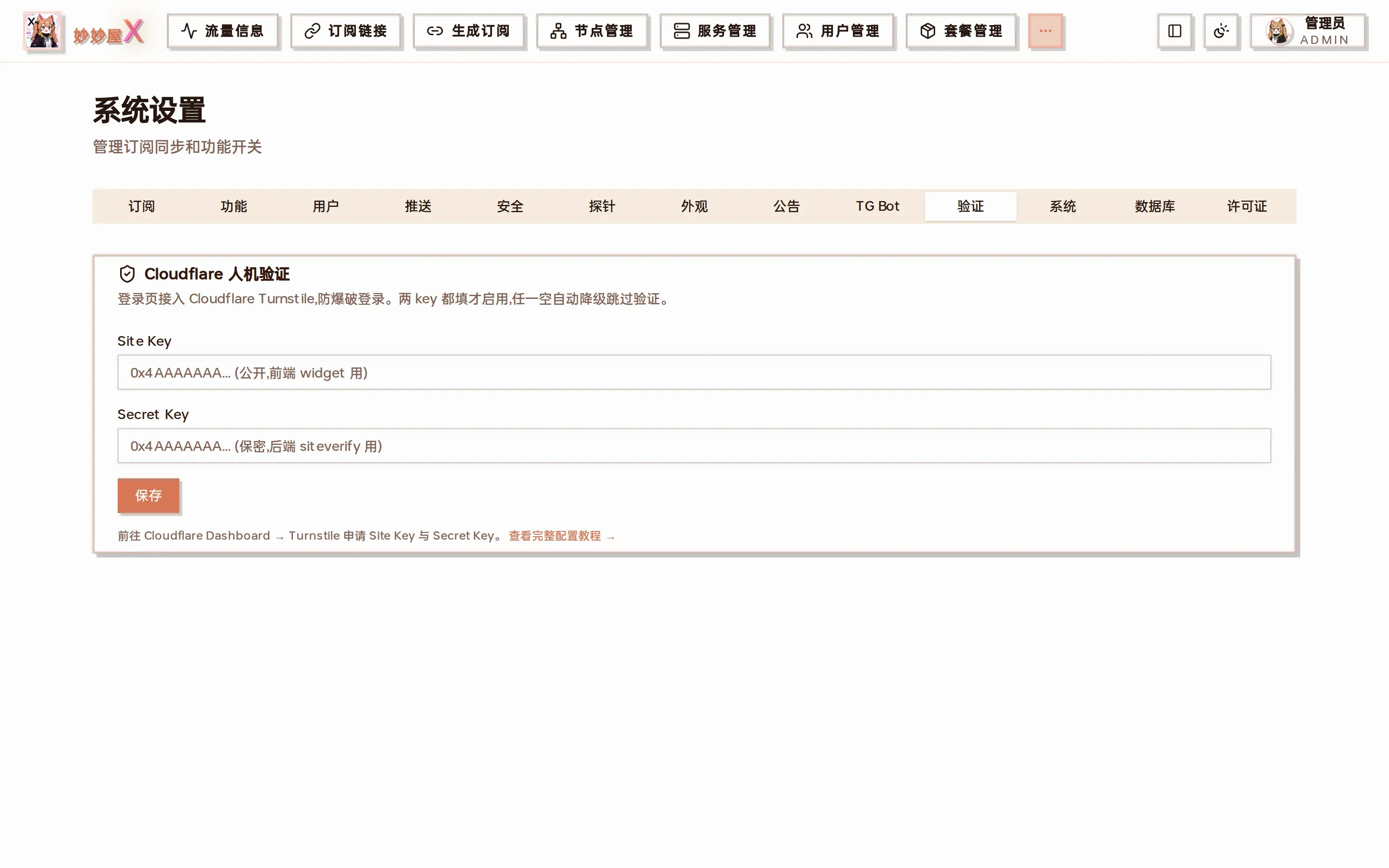
System Settings → Captcha: the Cloudflare Turnstile card with both keys empty
3. Paste keys & save
Section titled “3. Paste keys & save”Paste Site Key into the Site Key field and Secret Key into the Secret Key field. Blur the input to auto-save — no button needed, takes effect immediately without restart.
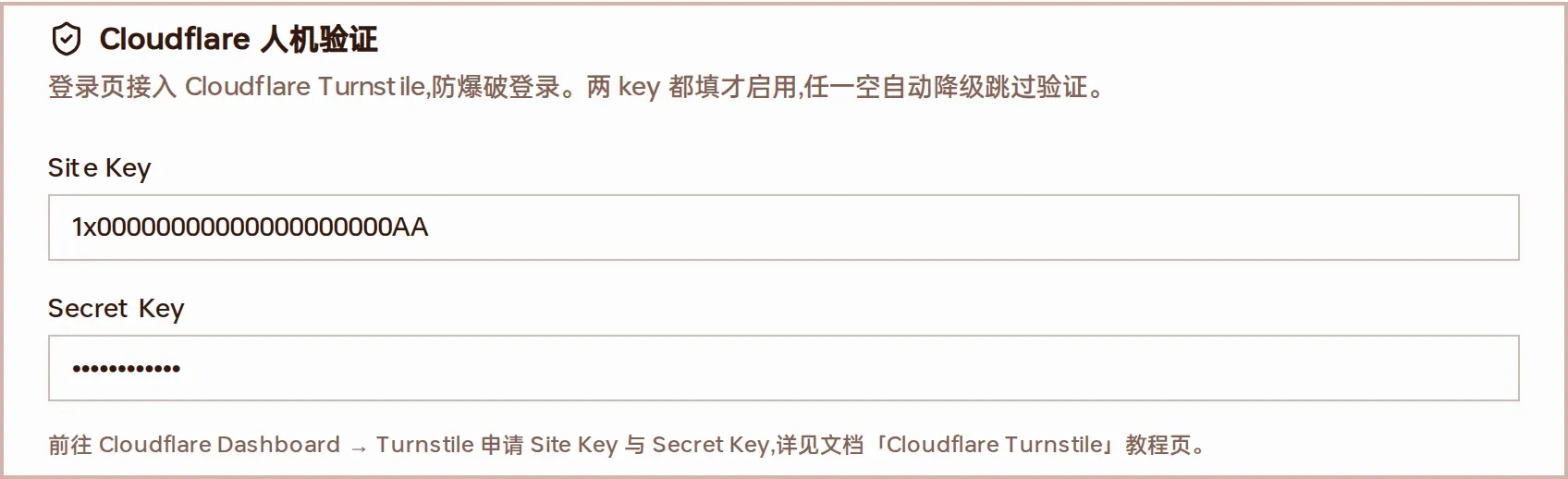
Site Key shown as-is after save; Secret Key shown masked on next load
Step 3 — Verify it’s working
Section titled “Step 3 — Verify it’s working”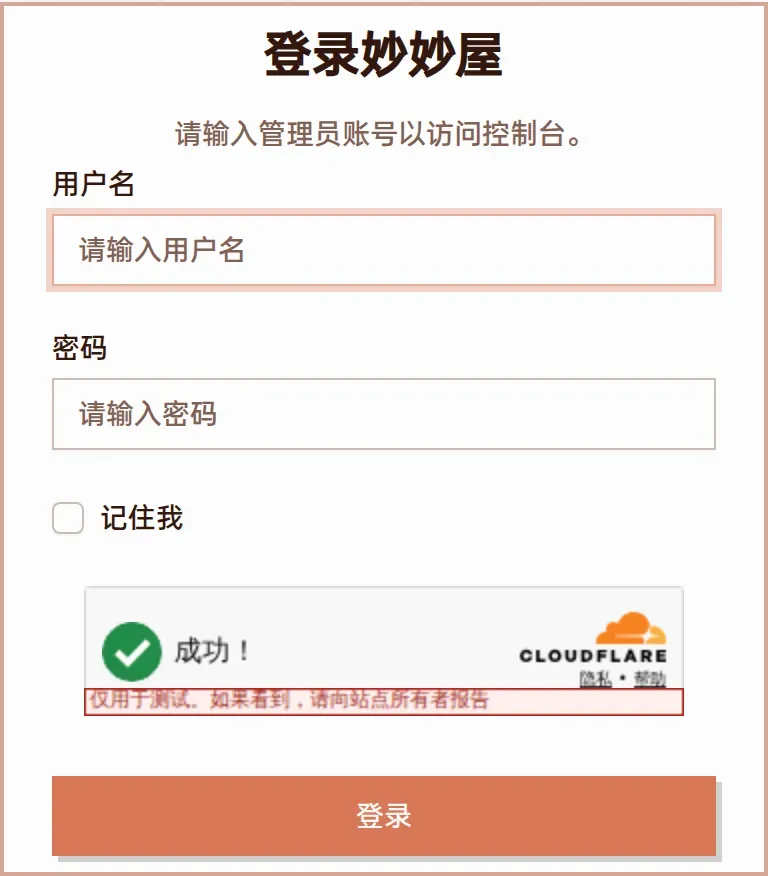
MiaomiaowuX login page with the Turnstile widget at the bottom (CF test key shown — auto-passes with the ‘Success’ badge)
- Open the login page in an incognito window (to fetch the latest captcha config) — you should see the Turnstile widget at the bottom of the form (auto-pass usually within 1–2 seconds)
- Sign in with correct credentials — should land on the home page, confirming the front-back wiring is good
- Intentionally type a wrong password — the backend returns 401 invalid credentials; the Turnstile widget auto-resets for the next attempt
Widget doesn’t show up on the login page?
Section titled “Widget doesn’t show up on the login page?”- Check Site Key is actually saved in System Settings; 2) Open DevTools → Network and verify /api/captcha/config responds with enabled:true and a non-empty site_key; 3) Domain mismatch with CF registration will block widget loading — check the browser console for errors.
Login is blocked by ‘captcha verification failed’?
Section titled “Login is blocked by ‘captcha verification failed’?”Secret Key is wrong, or Site Key and Secret Key don’t pair. Go back to CF Dashboard, open the same Site, and re-copy both keys at once.
How do I replace Secret Key?
Section titled “How do I replace Secret Key?”The Secret Key input shows a ‘Configured’ placeholder with an empty value for security. Just type the new Secret Key on top — blur to auto-save.
How do I disable Turnstile?
Section titled “How do I disable Turnstile?”Empty either (or both) of the keys and save. The backend Turnstile.Enabled() returns false immediately, login no longer verifies, and the frontend stops rendering the widget.