
Carpool walkthrough: several packages, several users
The carpool guide covers the shortest path: one package shared by a few people. This page goes further: several packages on the same servers, with different people getting different combinations, followed through the whole life of a user — starting, running over quota, reset, renewal and leaving.
The example used throughout:
| Package | Quota | Nodes | Used by |
|---|---|---|---|
| Daily (日常套餐) | 100 GB / month | everyday browsing nodes | alice, bob |
| Streaming (流媒体套餐) | 50 GB / month | streaming-unlock nodes | bob |
alice only joins Daily; bob joins both. Before you start, add your servers and create the nodes.
Screenshots show the Chinese interface; the Chinese label is given in parentheses wherever a button is mentioned.
Three things to know first
Section titled “Three things to know first”- A package is a template; bound to a user it becomes a “package instance”. The same package bound to 10 people is 10 instances, each with its own traffic, expiry and reset day. A 100 GB package means 100 GB for each person, not 100 GB shared
- One user can hold several instances at once. Each instance has its own credentials on the nodes, so bob running out of Daily does not affect his Streaming package, and vice versa
- Traffic is counted per user identity, not per port. The same node and port can be in several packages and used by many people; each person’s usage is tracked separately
Step 1: create the packages
Section titled “Step 1: create the packages”Open “Packages → Create package template” (套餐管理 → 创建套餐模板), enter a name and a traffic quota, tick the nodes this package may use on the right, and save.
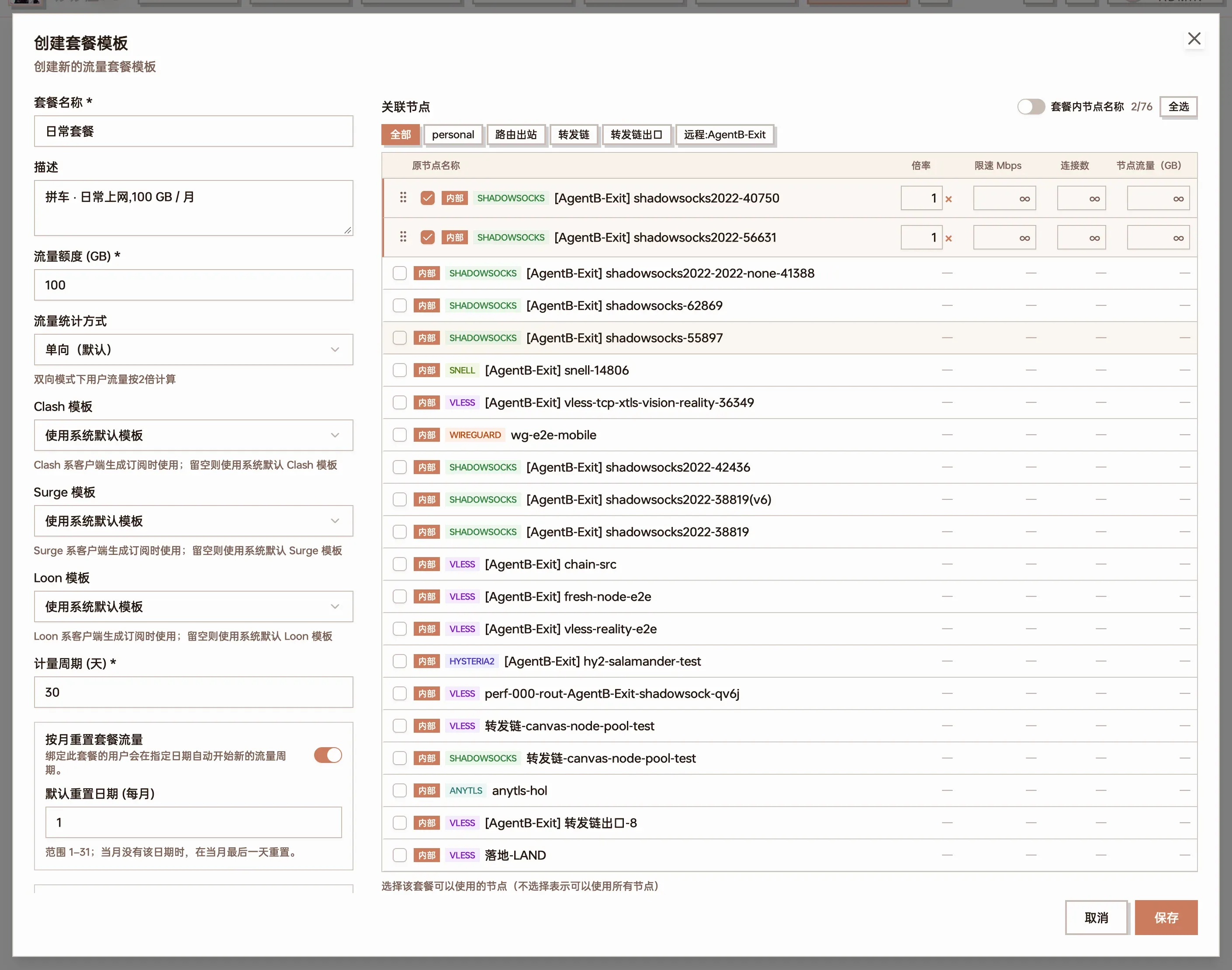
Creating the Daily package: 100 GB quota, two everyday nodes ticked on the right
Create the Streaming package the same way (50 GB, tick the streaming-unlock nodes).
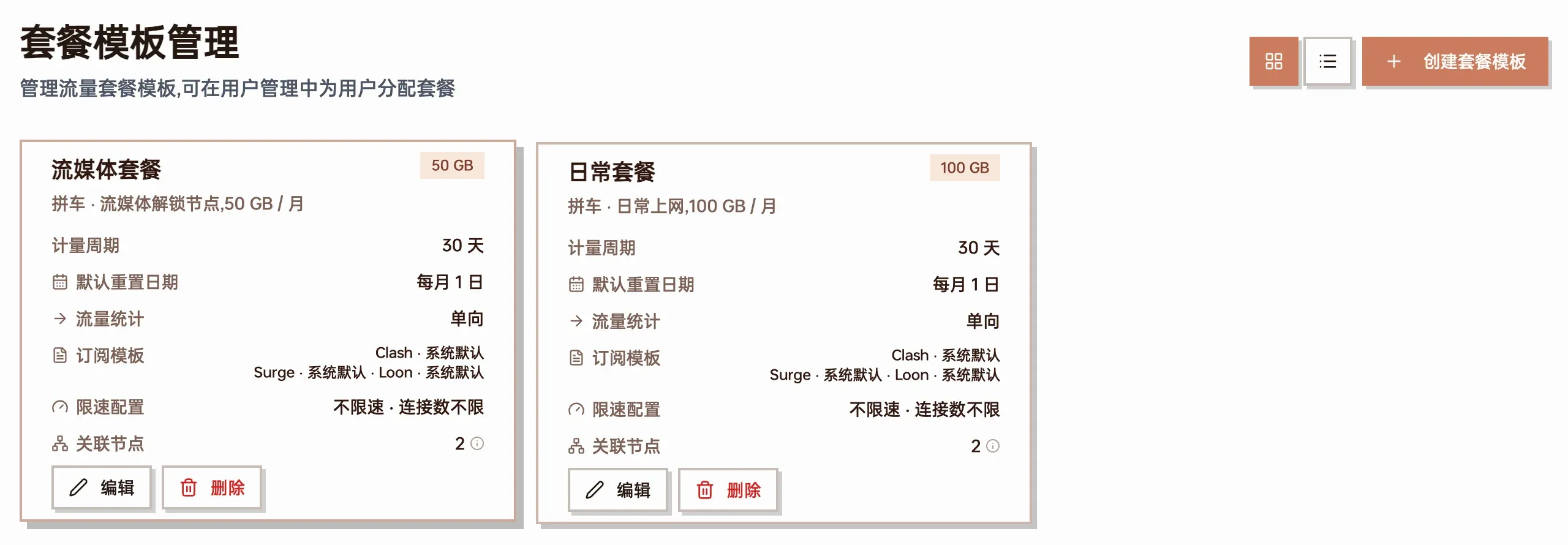
Both package cards: quota, metering period and number of linked nodes at a glance
Easy to get wrong:
- Ticking no nodes means all nodes. For two packages to use different nodes, tick them explicitly in each
- Two packages may include the same node. When one person reaches the same node through two packages, those are two different credentials and traffic goes to the respective package
- Metering period (days) only decides how far ahead the default expiry is set when binding; the day of the month usage is cleared is chosen when binding (step 3)
- Speed limit, connection limit, traffic counting mode (one-way / two-way) and node multipliers are covered in Packages
Step 2: create the users
Section titled “Step 2: create the users”Open “Users → Add user” (用户管理 → 新增用户) and create one account per person. Only the username is required; the initial password is random by default and is copied to the clipboard when you click “Confirm” (确认创建). Send it to the person together with the panel address.
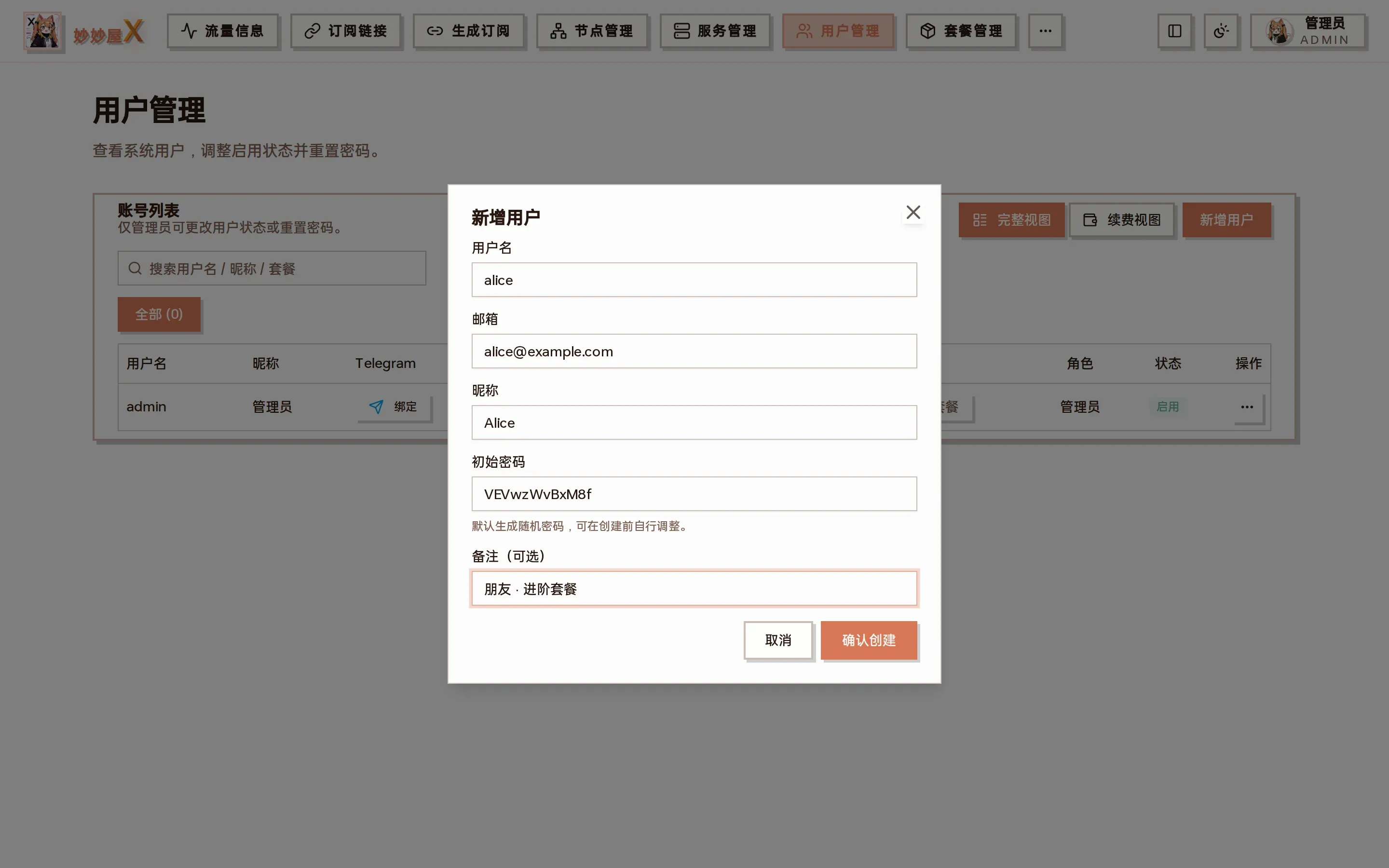
Add user: only the username is required
Create alice and bob this way.
Step 3: bind packages to users
Section titled “Step 3: bind packages to users”The first package
Section titled “The first package”On alice’s row click “Bind package” (绑定套餐), pick the Daily package, check the expiry and reset day, and click “Confirm Save” (确认保存).
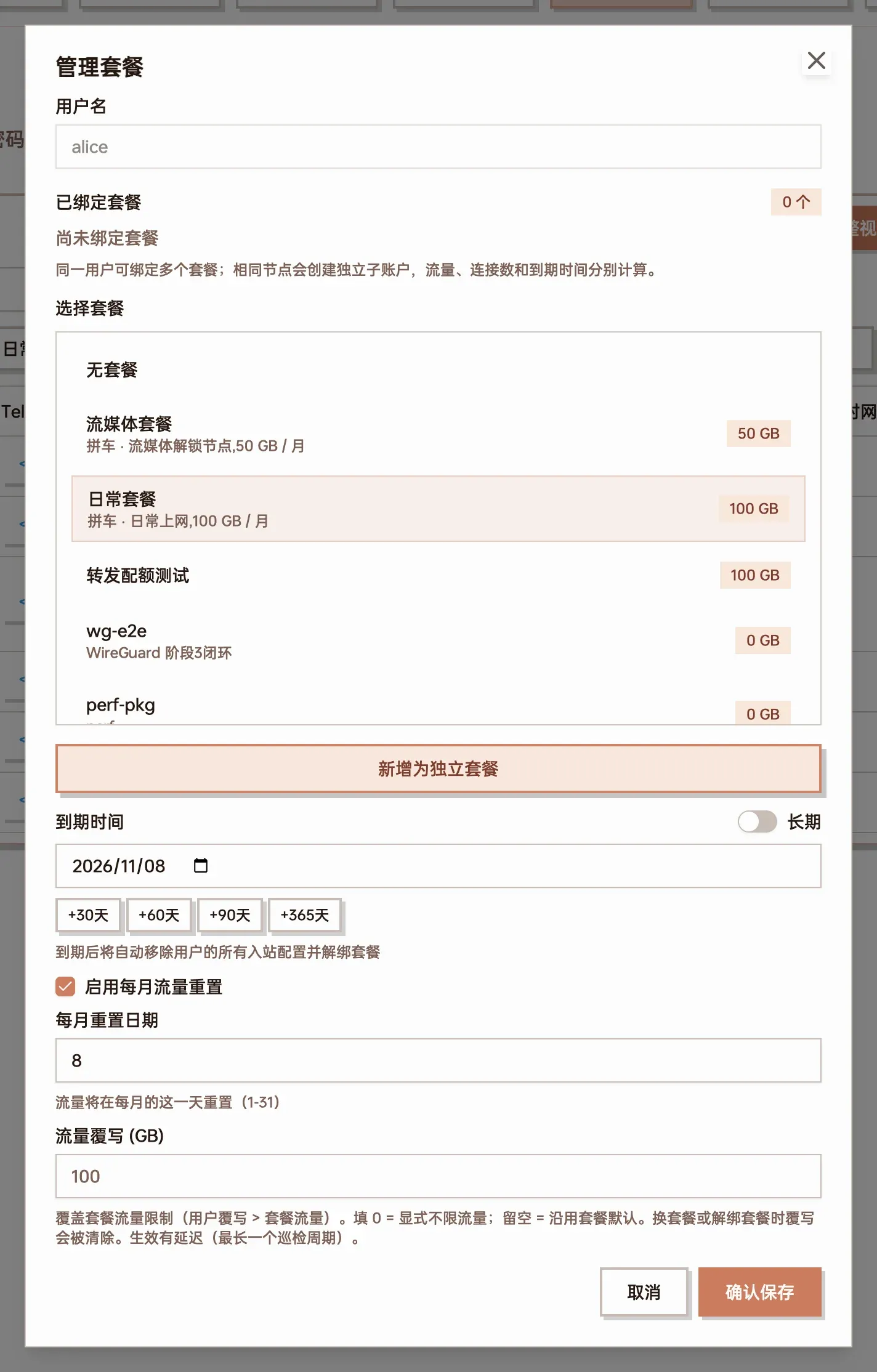
Binding Daily to alice: expiry defaults to one month ahead, monthly reset day defaults to the day of binding
| Field | How to fill it |
|---|---|
| Expiry (到期时间) | One month ahead by default; use the +30 / +60 / +90 / +365 day shortcuts, or turn on “Long-term” (长期) for no expiry |
| Enable monthly reset (启用每月流量重置) | When ticked, usage is cleared on the “Monthly Reset Day” each month. It defaults to the day of binding; set it to 1 if you want everyone on the 1st |
| Traffic override (流量覆写, GB) | Changes the quota for this person only, without touching the package. Empty = the package quota, 0 = unlimited |
Do the same for bob: bind Daily first.
Adding a second package
Section titled “Adding a second package”bob also wants Streaming. Open bob’s “Manage packages” dialog (click the package name in the “…” action menu). The cards at the top are the packages already bound; pick Streaming below and click “Add as independent package” (新增为独立套餐).
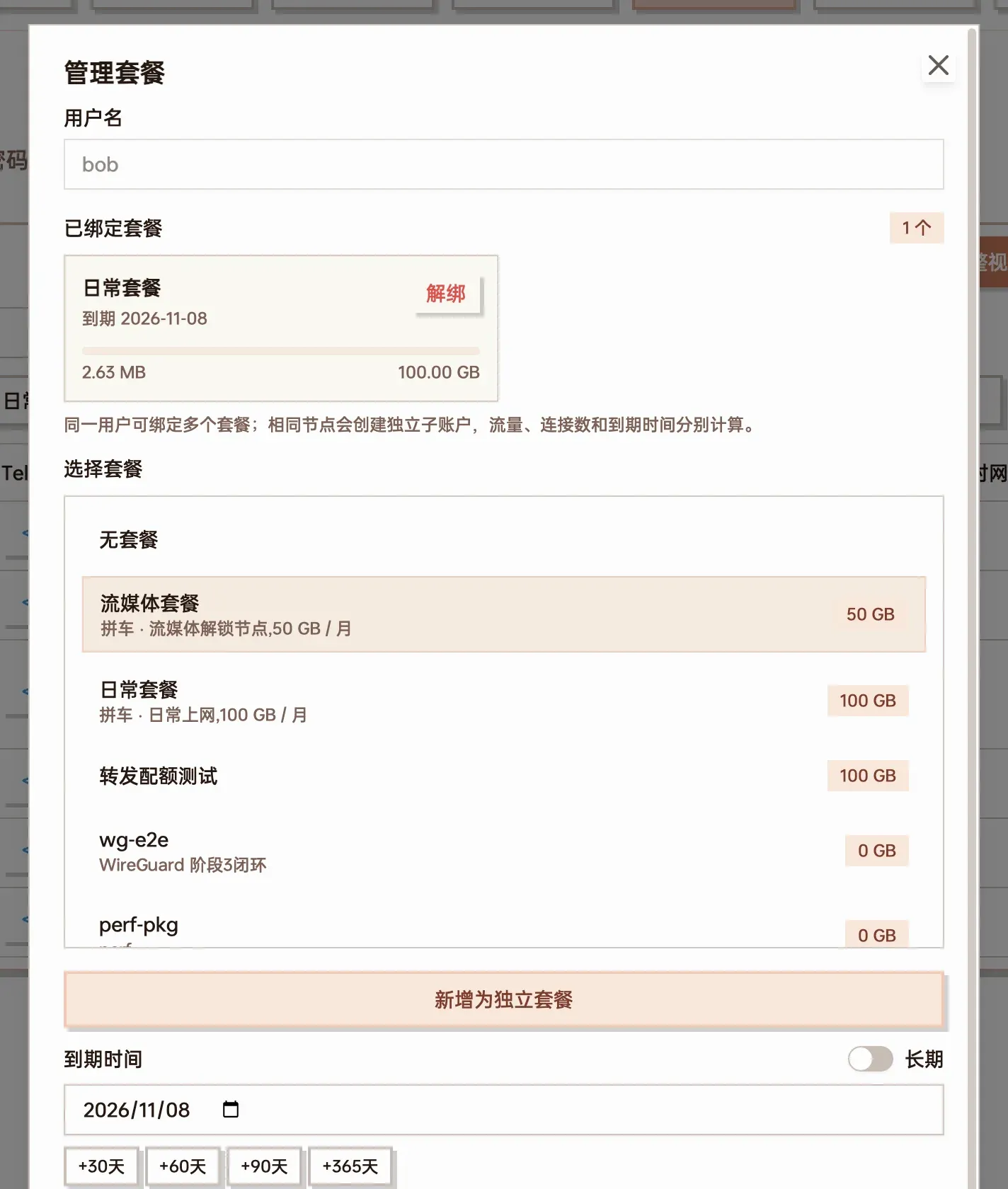
bob already has Daily; with Streaming selected, click “Add as independent package”
Afterwards bob’s “Package / traffic” column in the user list shows two progress bars, one per package.
To demonstrate running over quota, this guide sets a 1 GB traffic override on bob’s Streaming package, which is why later screenshots show its quota as 1.00 GB instead of the package’s 50 GB.
Step 4: hand out the subscriptions
Section titled “Step 4: hand out the subscriptions”Click “Copy subscription” (复制订阅) on the user’s row. With several packages a list appears: each package has its own subscription link (a QR code is available too):
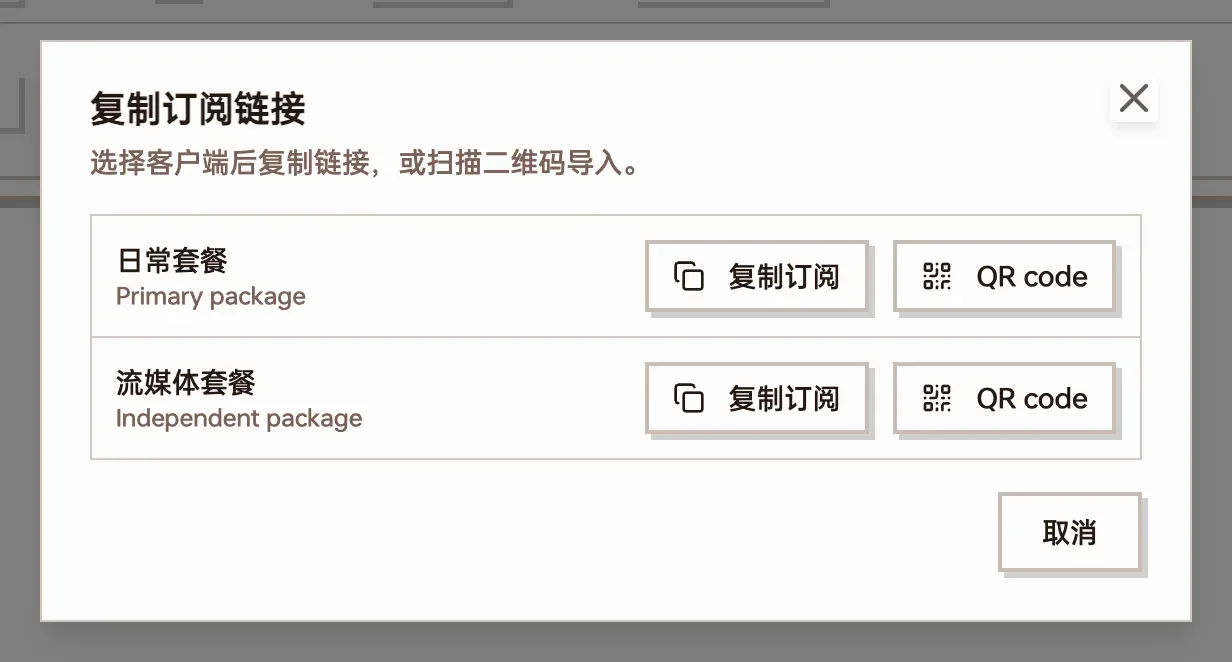
bob’s two packages each have a subscription link
- Each link only contains the nodes of that package, and the used / total / expiry shown in the client are that package’s own
- Import both links and the client has two subscription groups; whichever group’s node is used, that package is charged
- If two links are a nuisance, turn on “Merged subscription” (合并订阅) in system settings: every user gets one extra “all packages” link containing the nodes of all their active packages; when a package expires its nodes drop out automatically
Users can also get the links themselves: after logging in to the panel, the home page shows one card per package and the links are on the “Subscription links” page; with the Telegram bot connected, /sub in the bot does the same.
While it is running
Section titled “While it is running”Checking usage
Section titled “Checking usage”Once users start using their nodes, the progress bars in the user list grow:

alice has used 5% of Daily; bob has barely touched Daily and used 65% of Streaming
For exact numbers open “Manage packages”: one card per package instance with used / quota and the expiry date:
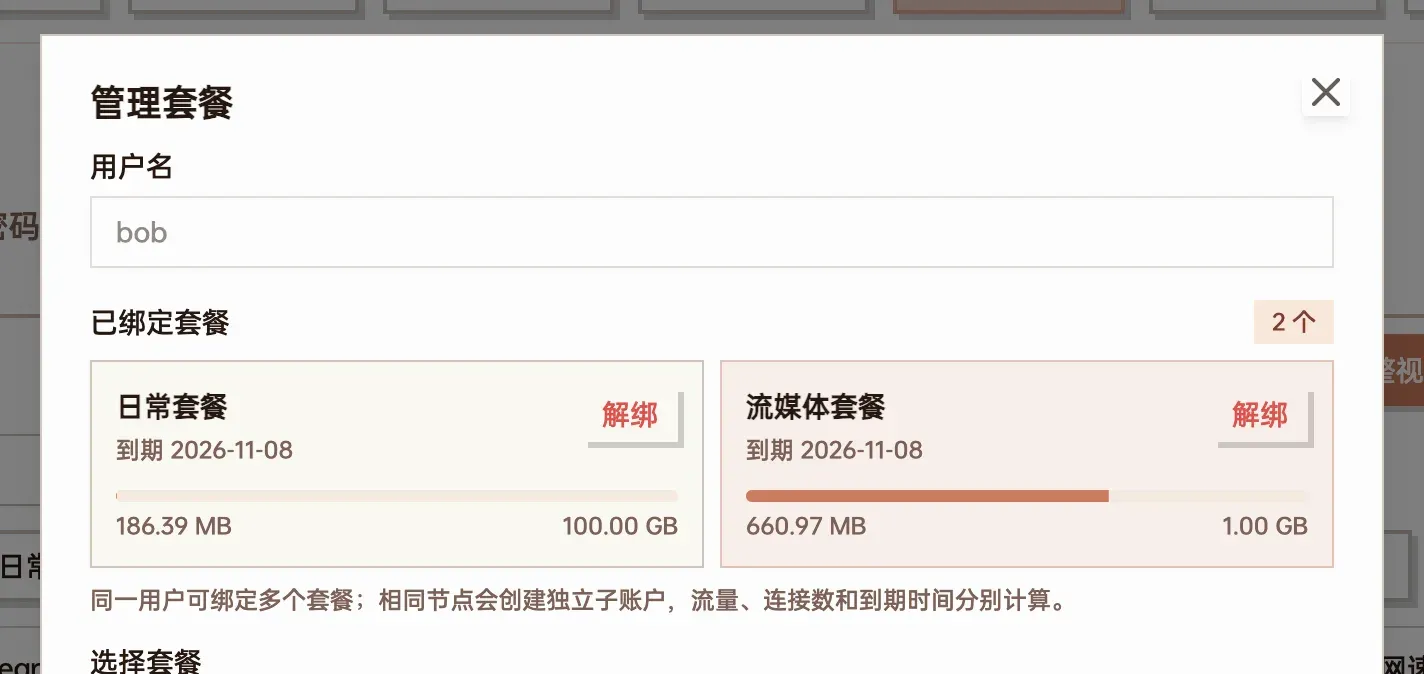
bob’s two packages are accounted separately: Daily 186 MB / 100 GB, Streaming 661 MB / 1 GB
Users see the same cards on their own home page. A finer breakdown of who used how much on which node is under “Traffic details”; how the pages differ is explained in Traffic accounting.
Getting close to the quota
Section titled “Getting close to the quota”At 80% the panel sends a warning to the admin’s Telegram (Telegram notifications must be configured under “System settings → Push”). Users who send /notify on to the bot get a daily traffic summary at 20:00.
What happens over quota
Section titled “What happens over quota”When a package instance reaches its quota:
- The panel removes that instance’s credentials from the nodes, so the user can no longer connect through that package’s nodes. This usually takes effect within 1–2 minutes
- Only that instance is affected. bob’s Streaming package ran out, his Daily package keeps working; alice is not affected at all
- The package gets a red “Over limit” (超限) badge in the user list

bob’s Streaming package is over quota and marked; Daily and alice are unaffected
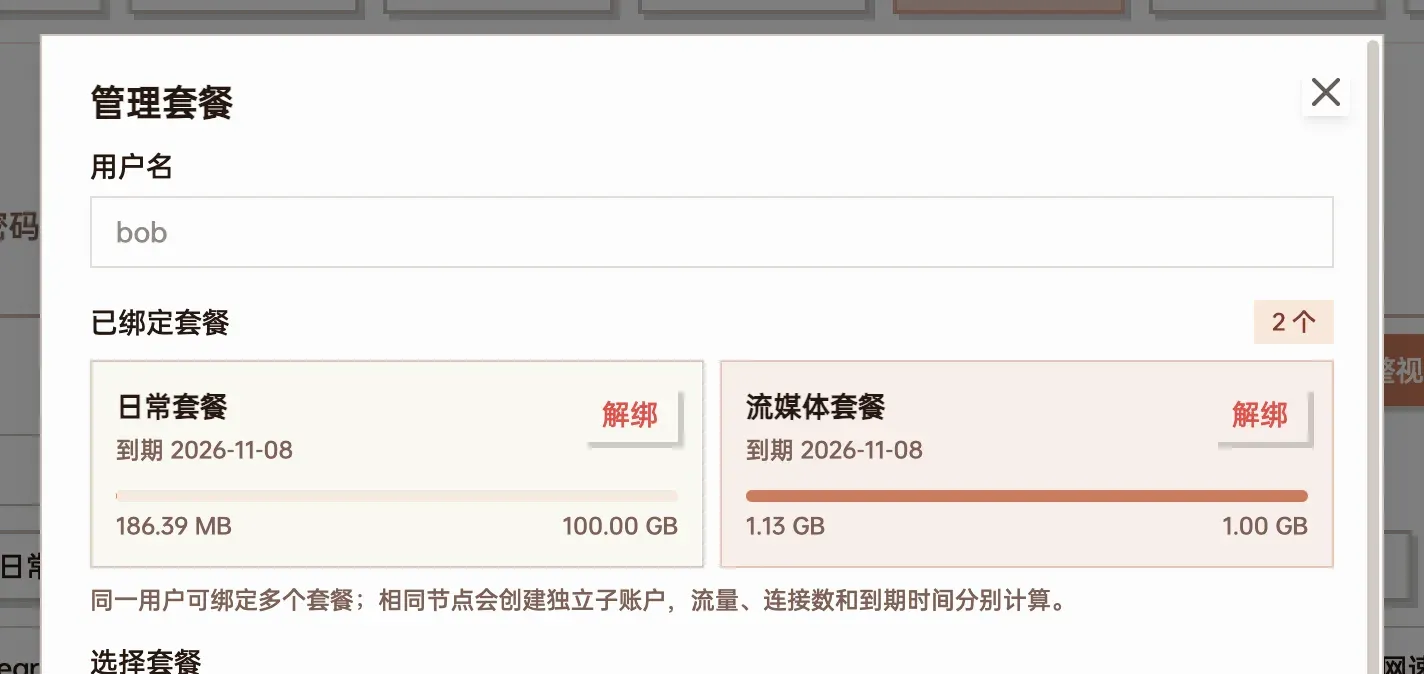
The card shows 1.13 GB used against a 1.00 GB quota
Admin accounts are exempt from quotas and are never cut off.
Bringing an over-quota user back
Section titled “Bringing an over-quota user back”Four options:
| Option | How | Effect |
|---|---|---|
| Wait for the monthly reset | Nothing to do | Usage clears on the reset day and access returns |
| More quota for this person | In “Manage packages” click that package card, change “Traffic override”, click “Save this package” (保存该套餐) | Only this person’s instance changes; access returns within seconds to tens of seconds |
| More quota for the whole package | Edit the package’s quota under “Packages” | Applies to everyone bound to it who has no override of their own |
| Reset traffic | User action menu “…” → “Reset Traffic” (重置流量) | Clears usage on all packages of this user; access returns after the next check (within 2 minutes by default) |
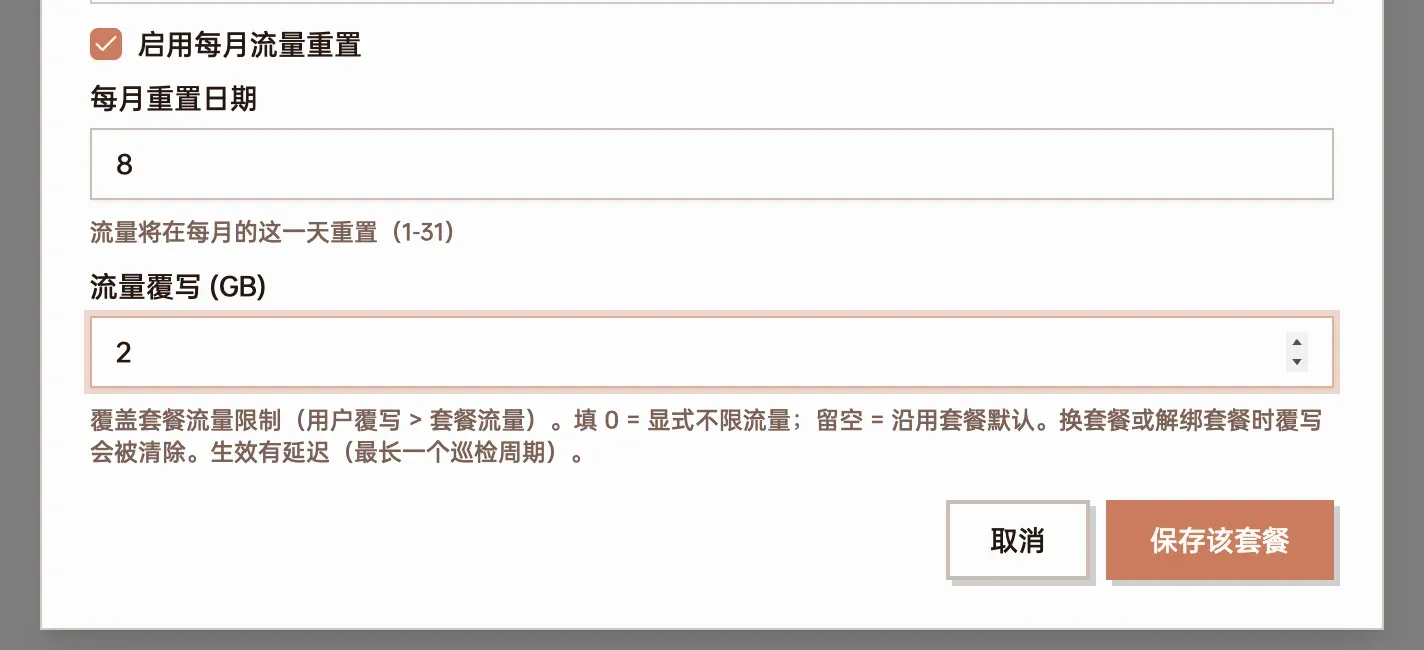
Select the over-quota card, change the traffic override from 1 to 2, click “Save this package”
The user does not need a new subscription — the same nodes simply work again.
At the end of a period
Section titled “At the end of a period”Monthly reset
Section titled “Monthly reset”For packages with monthly reset enabled, usage clears on the reset day and over-quota instances recover with it. Every instance follows its own reset day: if bob’s two packages were bound on different days they clear on different days. To keep everyone aligned, enter the same reset day when binding.
Expiry
Section titled “Expiry”When the expiry time is reached, the instance is disabled by default: its credentials are removed and the package is unbound from the user. Other packages that have not expired are unaffected.
If you do not want an immediate cut-off, change the package’s expiry handling to “Degrade to another package when expired” (到期后降级到另一个套餐) and set a grace period: after expiry the user falls back to the package you choose (typically a rate-limited one with few nodes); renewing during the grace period restores the original package, and only after the grace period is the user disabled.
The admin’s Telegram gets a reminder before expiry; users with /notify on are reminded 7 / 3 / 1 days ahead.
Renewal
Section titled “Renewal”Once you have been paid, switch to “Users → Renewal view” (续费视图). Every row has +30 / +60 / +90 / +365 day buttons and “Reset Traffic”, handy for processing a batch at the start of the month:

Renewal view: expiry, usage and renewal buttons on one row
- Renewing only changes the expiry time; it does not clear usage. To start the new period from zero, also click “Reset Traffic”
- These buttons renew the user’s first (primary) package. For a package added with “Add as independent package”, open “Manage packages”, click its card, change the expiry and click “Save this package”
When someone leaves
Section titled “When someone leaves”| Situation | How | Result |
|---|---|---|
| Leaving one package only | Click “Unbind” (解绑) on that card in “Manage packages” | That package’s nodes stop working immediately, the others keep working. It takes effect on click, without a confirmation |
| Pausing someone | Switch the user’s status to disabled | No node works and the user cannot log in; package bindings are kept and come back when re-enabled |
| Leaving for good | Action menu “…” → “Delete” (删除) | Deletes the account and all its credentials |
The package itself can stay for the next person. Deleting a package unbinds every user still on it and their nodes in that package stop working — make sure nobody is using it first.
Two packages contain the same node — which one is charged?
Section titled “Two packages contain the same node — which one is charged?”Whichever subscription’s node the user is actually using. The two packages have different credentials on that node, so traffic goes to the package whose credentials were used and is never counted twice.
A user says all nodes suddenly stopped working
Section titled “A user says all nodes suddenly stopped working”Look at the user list first:
- The package is marked “Over limit” → quota used up, see Bringing an over-quota user back
- The package is gone → it expired and was disabled; bind it again
- Status is disabled → re-enable the user
If none of these, check under “Servers” that the server and Xray are online.
The usage in the list does not match “Manage packages”
Section titled “The usage in the list does not match “Manage packages””With several packages, trust the numbers on each card in “Manage packages” — every instance is accounted against its own quota and reset day.
Can several people share one quota?
Section titled “Can several people share one quota?”Not directly: quotas are per person and per package instance. To share one quota, they have to share one account.