
User Management
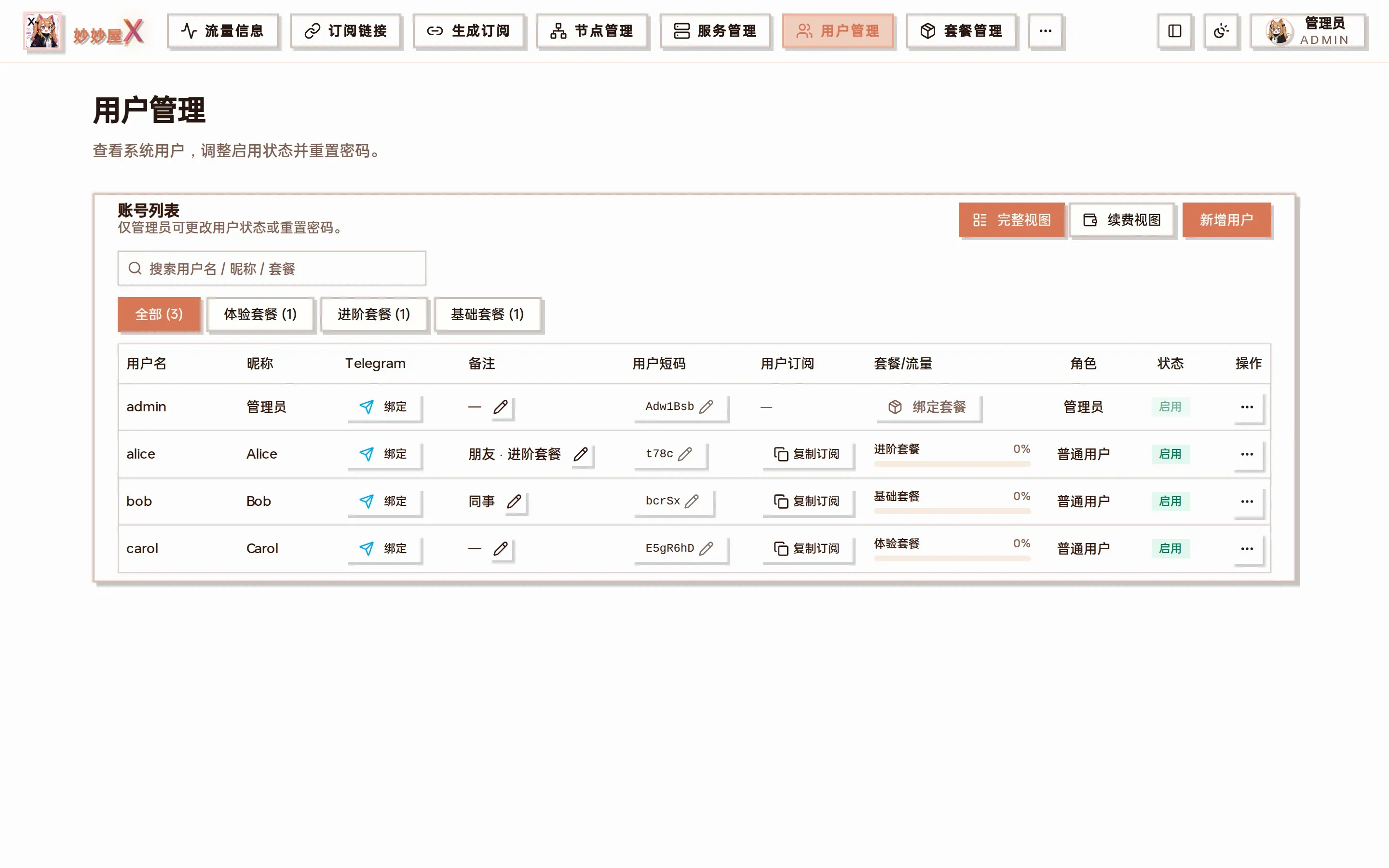
Users — account list: username / nickname / Telegram binding / remark / user short code / subscription / package and traffic bar / role / status / actions
Try it: user management
Section titled “Try it: user management”6 mock users; create, bind packages, toggle, copy subscription, delete. The traffic bar changes color with usage.
| User | Package | Usage | Expires | Enabled | Actions |
|---|---|---|---|---|---|
alice alice@example.com | 进阶版 | 87.4 / 300 GB | 2026-09-20 | ||
bob bob@example.com | 基础版 | 62.1 / 100 GB | 2026-08-05 | ||
charlie charlie@example.com | 尊享版 | 412.6 / 1024 GB | 2027-01-15 | ||
diana diana@example.com | 体验版(7天) | 18.9 / 20 GB | 2026-06-10 | ||
jimlee jim@example.com | 进阶版 | 156.0 / 300 GB | 2026-12-31 | ||
kate kate@example.com | unbound | 0.0 / 0 GB | - |
Overview
Section titled “Overview”The user module manages subscriber accounts, permissions and subscription tokens. Two roles exist: administrator and regular user. Search by username / nickname / package above the list or filter by package; “Full view / Renewal view” at the top right switches the list layout.
| Role | Permissions | Description |
|---|---|---|
| Administrator | All | System, server and user management |
| Regular user | Subscribe | View own subscription link and profile |
Create a user
Section titled “Create a user”- Open “Users”
- Click “Add User”
- Enter the username; email / nickname / remark are optional
- The initial password is random by default and can be changed before creating
- Click “Create”; the initial password is copied to the clipboard
- The user short code and subscription token are generated; use “Copy subscription” in the list
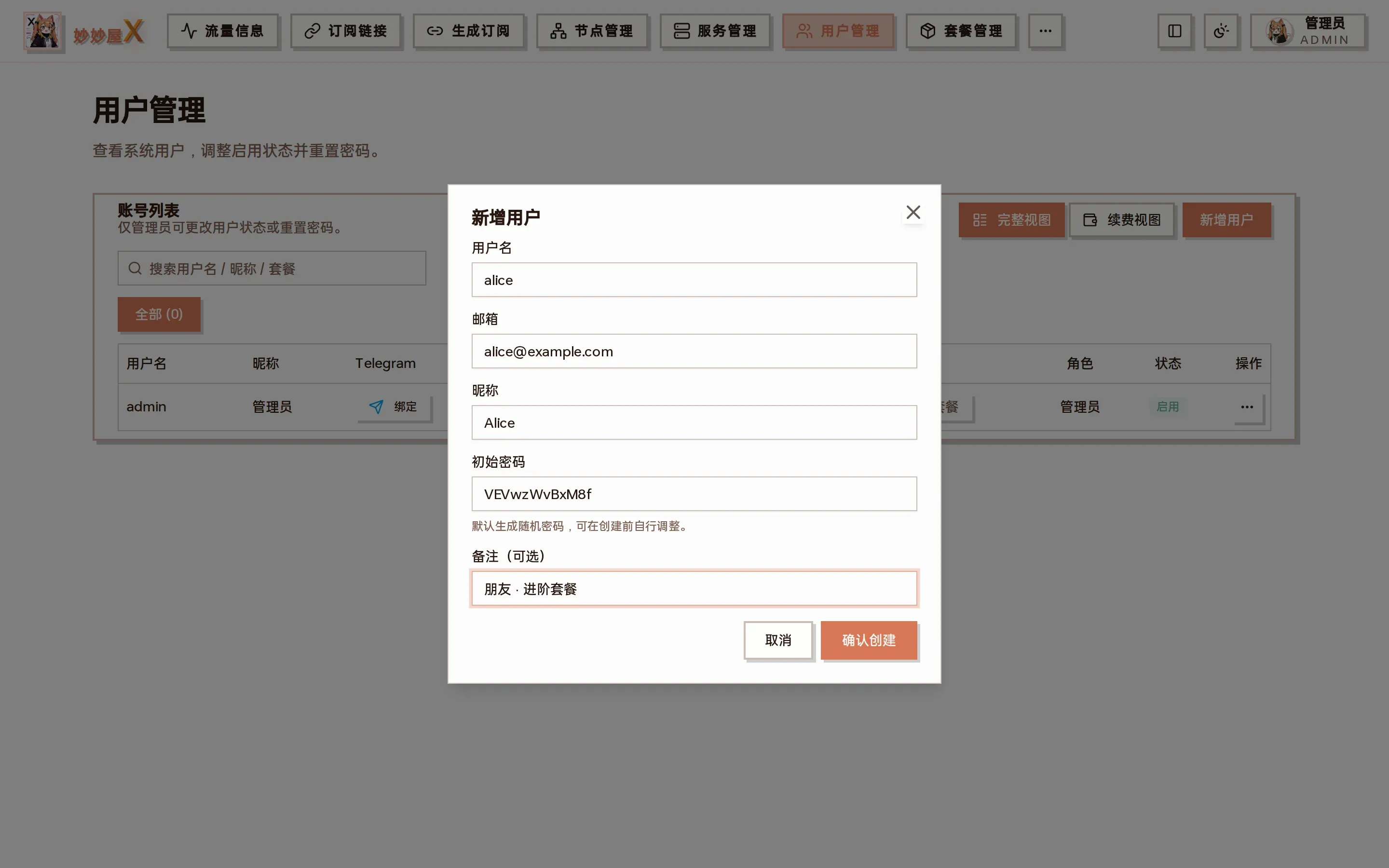
Add user: username, email, nickname, initial password, remark
Bind and manage packages
Section titled “Bind and manage packages”Rows without a package show a “Bind Package” button; for bound users open the “…” menu and click the package name to reach “Manage Packages”:
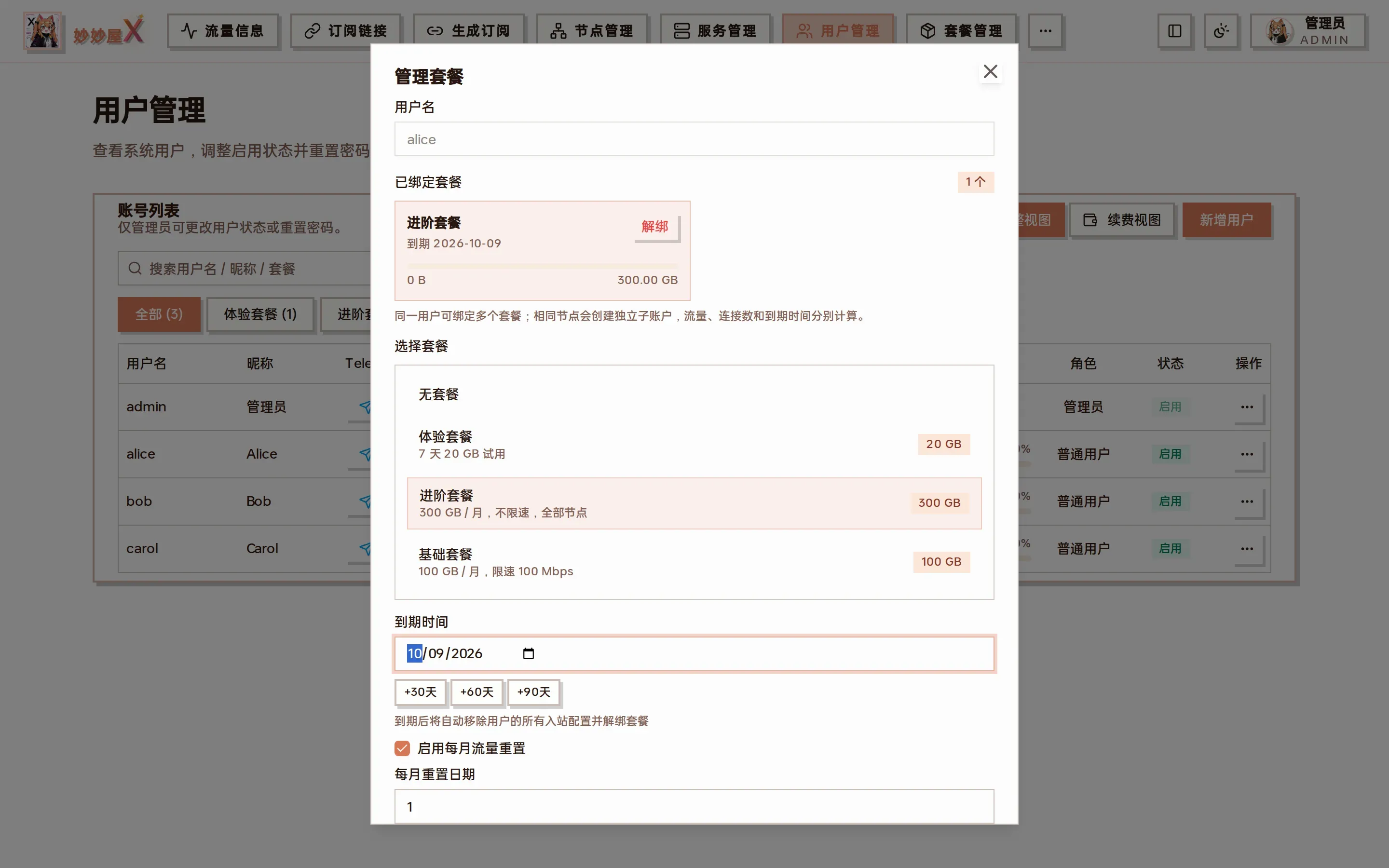
Manage packages: bound package cards (usage / expiry / unbind), package picker, expiry (+30 / +60 / +90 days), monthly reset, traffic override
| Item | Description |
|---|---|
| Bound packages | One card per package instance with used / limit and expiry; unbind individually |
| Choose package | Pick from the created package templates |
| Expiry | +30 / +60 / +90 days or a date; on expiry all inbound configs are removed and the package unbound |
| Monthly traffic reset | Reset on the given day (1–31) |
| Traffic override (GB) | User override > package quota; 0 = explicitly unlimited, empty = package default; cleared on package change |
| Add as separate package | One user can hold several packages; the same node gets independent sub-accounts with separate traffic, connections and expiry |
Example: a 30-day Advanced package for a friend
Section titled “Example: a 30-day Advanced package for a friend”- “Add User” → username
alice, remark “friend”, create (the initial password is copied, send it over) - On alice’s row click “Bind Package” → choose “Advanced” → “+30 days” → “Save package”
- The “Package/Traffic” column shows a bar; click “Copy subscription” and send the link
- Before expiry click +30 days again in “Renewal view” or the “Renew” menu item
Action menu
Section titled “Action menu”The “…” at the far right of each row:
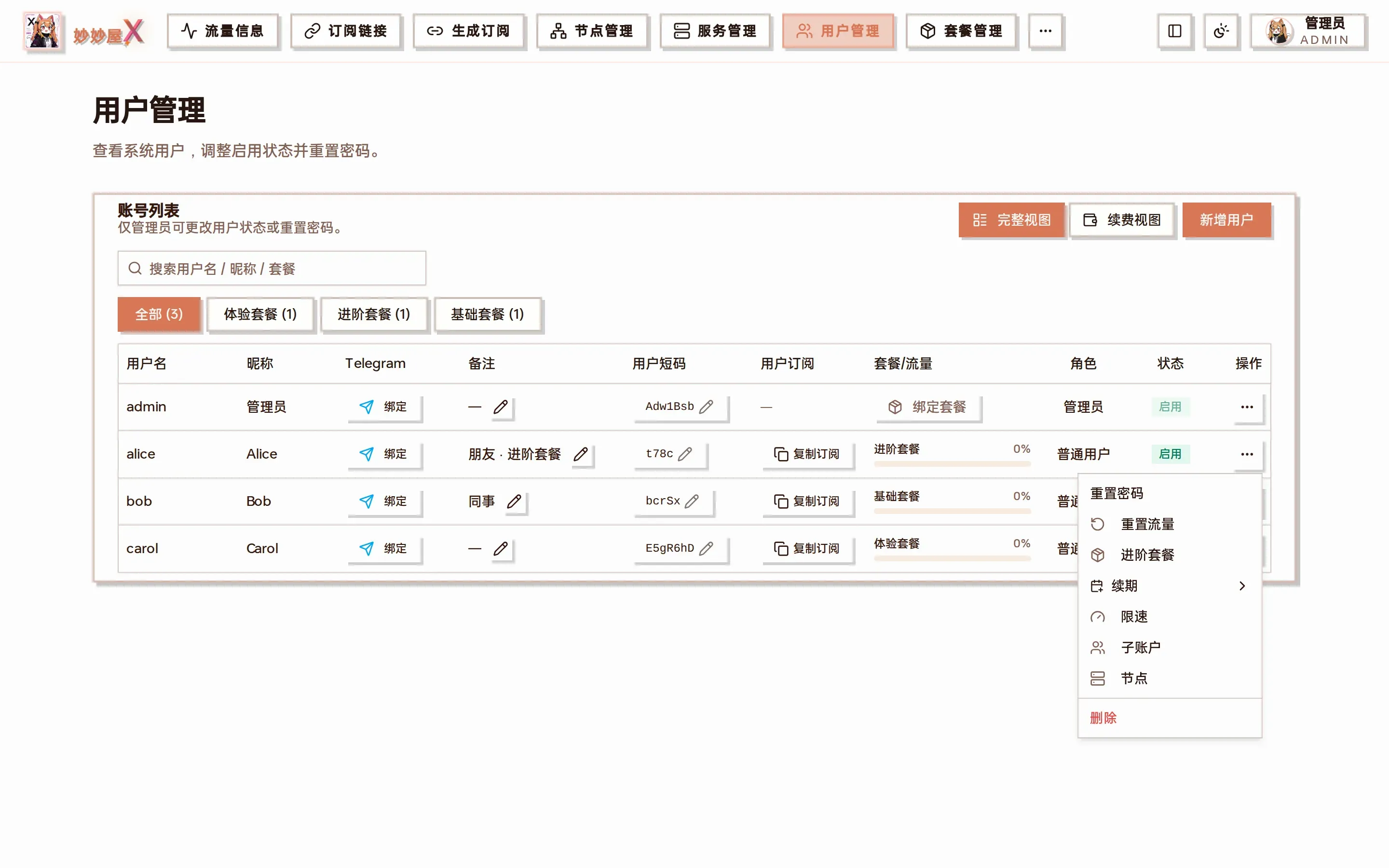
Action menu: reset password, reset traffic, manage packages (shows the current package name), renew, rate limit, sub-accounts, nodes, delete
| Item | Description |
|---|---|
| Reset password | Generates a new random password (editable) and applies it on confirm |
| Reset traffic | Zero the user’s usage for the current period |
| Package name | Opens “Manage Packages” |
| Renew | +30 / +60 / +90 days |
| Rate limit | Per-user speed / connection overrides with priority over the package, plus per-node overrides, see Rate Limiting |
| Sub-accounts | The user’s sub-accounts on each node (multi-package / routed outbounds create separate credentials) |
| Nodes | Nodes the user imported themselves (excluding the package pool), can be cleared |
| Delete | Delete the user and all credentials |
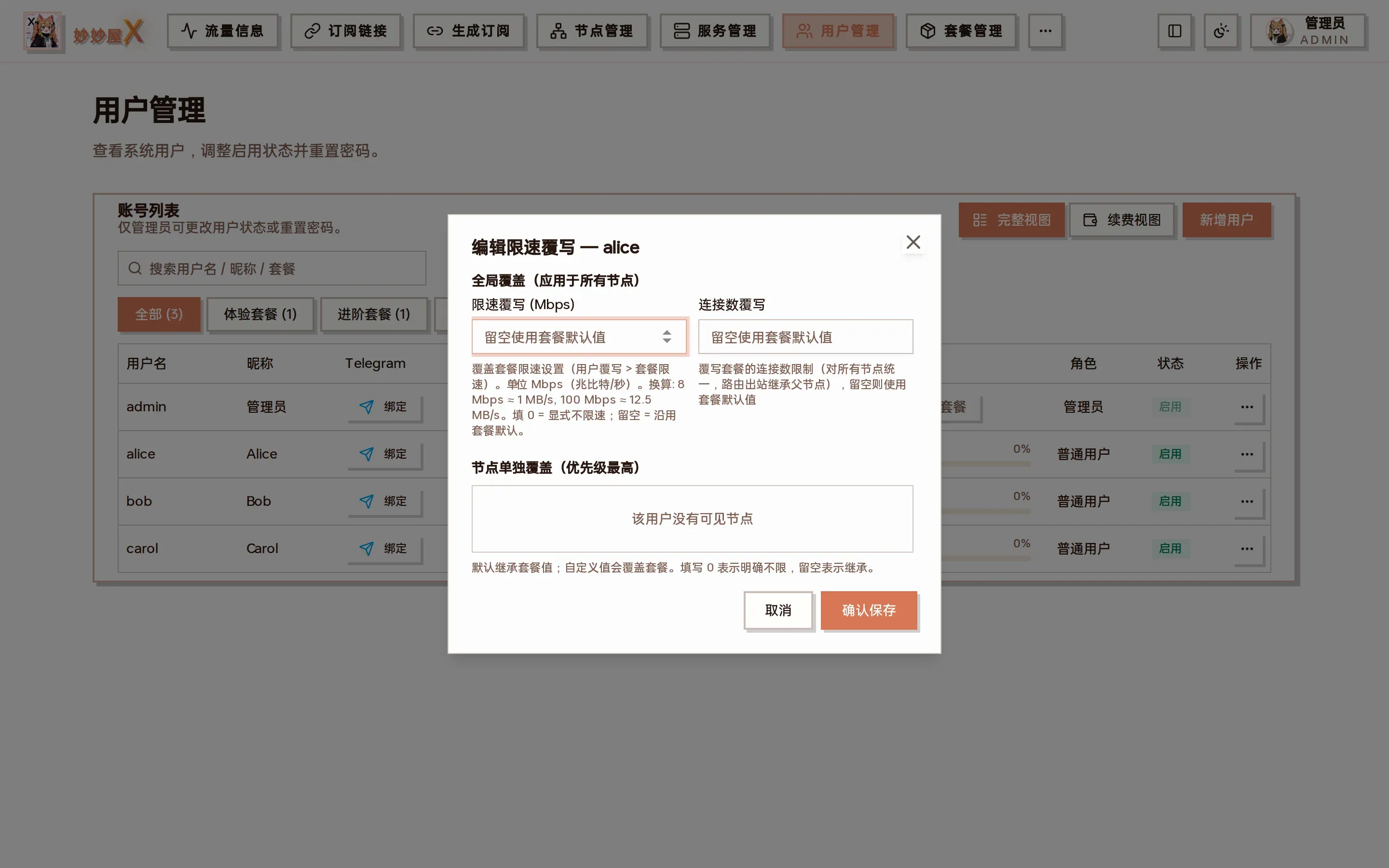
Rate limit override: global override (Mbps + connections) and per-node overrides
Renewal view
Section titled “Renewal view”“Renewal view” reorganizes the list around expiry dates; each row offers +30 / +60 / +90 / custom renewal and reset traffic, handy for bulk renewals at the start of the month:
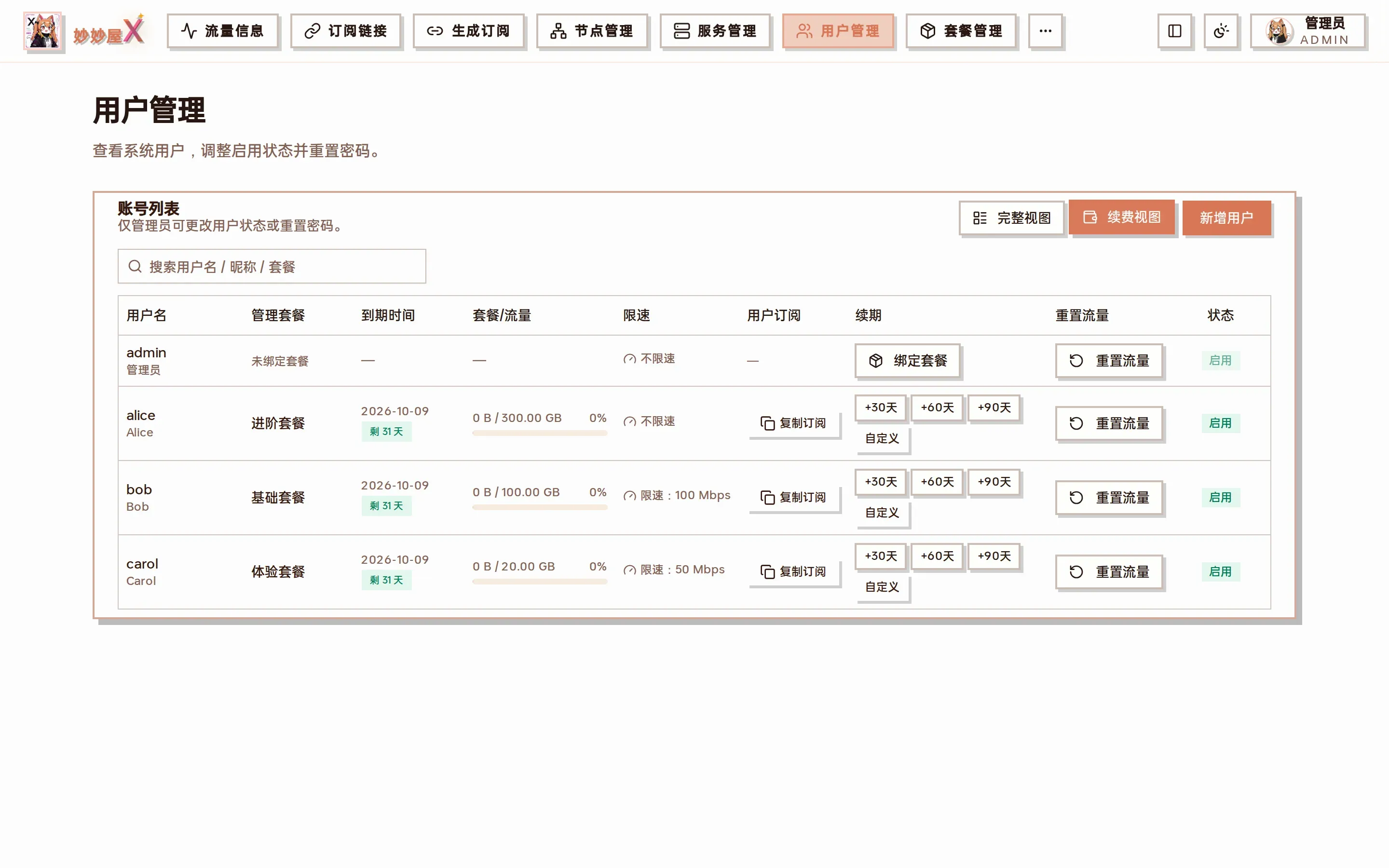
Renewal view
Reorder users
Section titled “Reorder users”In the sort selector above the list, “Default order” is the order the admin arranged. Click “Reorder” next to it to open the ordering dialog: drag the handle, use the top / up / down / bottom buttons on each row, or select a row and press ↑ ↓. After saving, both the full view and the renewal view follow it; users created later are appended at the end. The other sort options (username, traffic used, expiry …) only affect the current browser.
Subscription token
Section titled “Subscription token”Each user has a unique subscription token used to authenticate subscription links. It can be regenerated; the old one is invalidated immediately. The “user short code” in the list identifies the user in short links and can be customized with the pencil icon.
Telegram binding
Section titled “Telegram binding”“Bind” in the Telegram column generates a /start command the user sends to the bot to link their Telegram; afterwards the Mini App shows their package and subscription without a login, see Telegram Bot.
Traffic and multiple packages
Section titled “Traffic and multiple packages”List usage aggregates all of the user’s billable credentials while the list limit still comes from the primary package. Open “Manage Packages” to see each instance’s own usage and limit; the same node uses independent credentials, reset baselines and expiry per instance. Billing formulas and the “Traffic” page details: Traffic Accounting.
Authentication
Section titled “Authentication”The API uses JWT:
- Obtain a JWT token after login
- Send it in the MM-Authorization header
- Log in again after expiry