
Xray Service Management
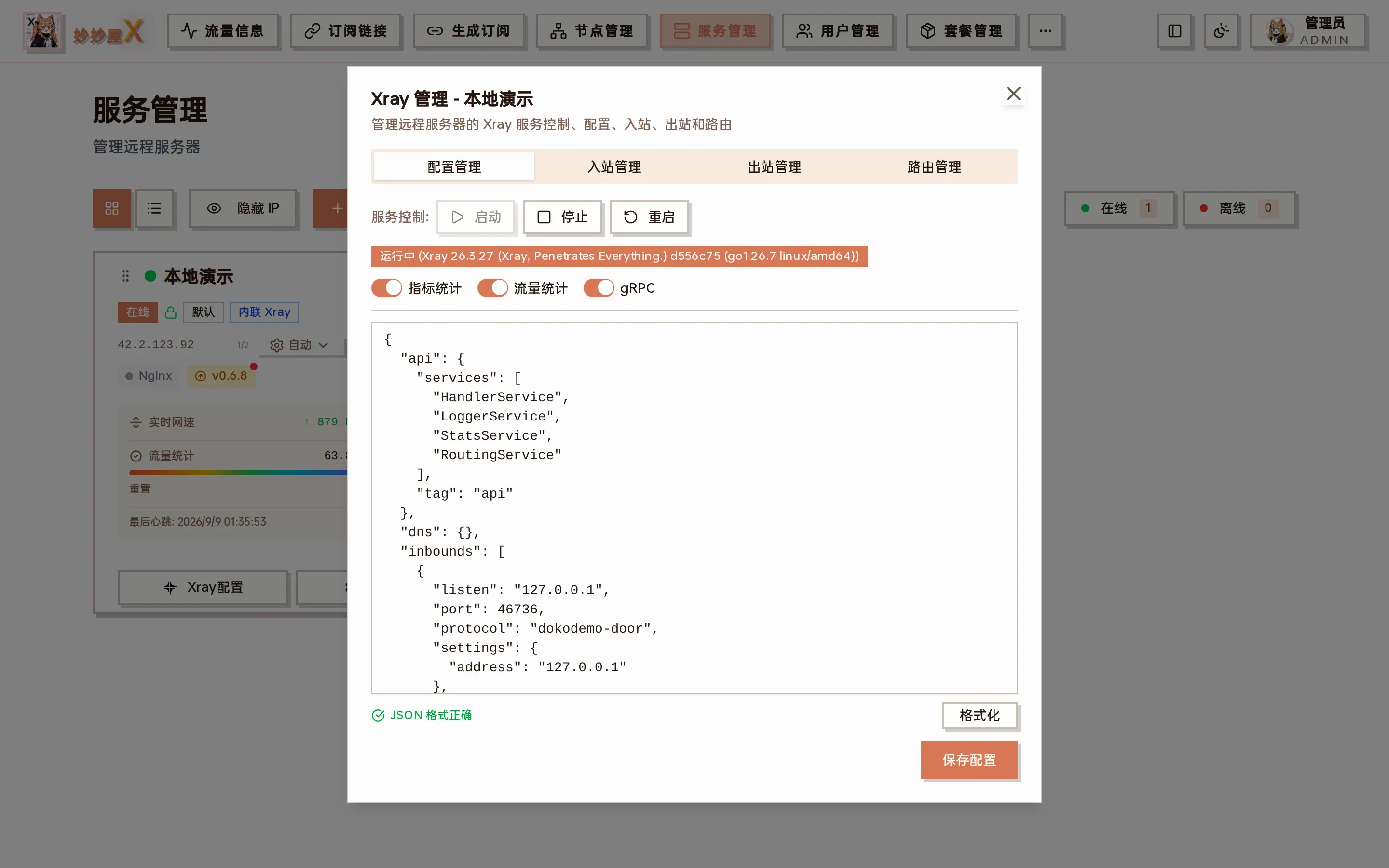
Servers → server card “Xray Config”: service control (start / stop / restart) and running state on top, metrics / stats / gRPC status and the editable full config below
Entry points
Section titled “Entry points”All Xray / Nginx service operations live on the server card in “Servers”:
| Location | Operations |
|---|---|
| “Xray Config” button | Xray management dialog: service control, config file, inbounds / outbounds / routing |
| Nginx badge on the card | Click for Nginx start / restart |
| Xray badge on the card | Shows Xray state (green running / grey stopped) |
| “Scan remote services” icon | Re-scan Xray / Nginx state and version and sync inbounds to the node table |
| “Agent” menu | Sync nodes, config history, push default config, websites, upgrade / uninstall Agent |
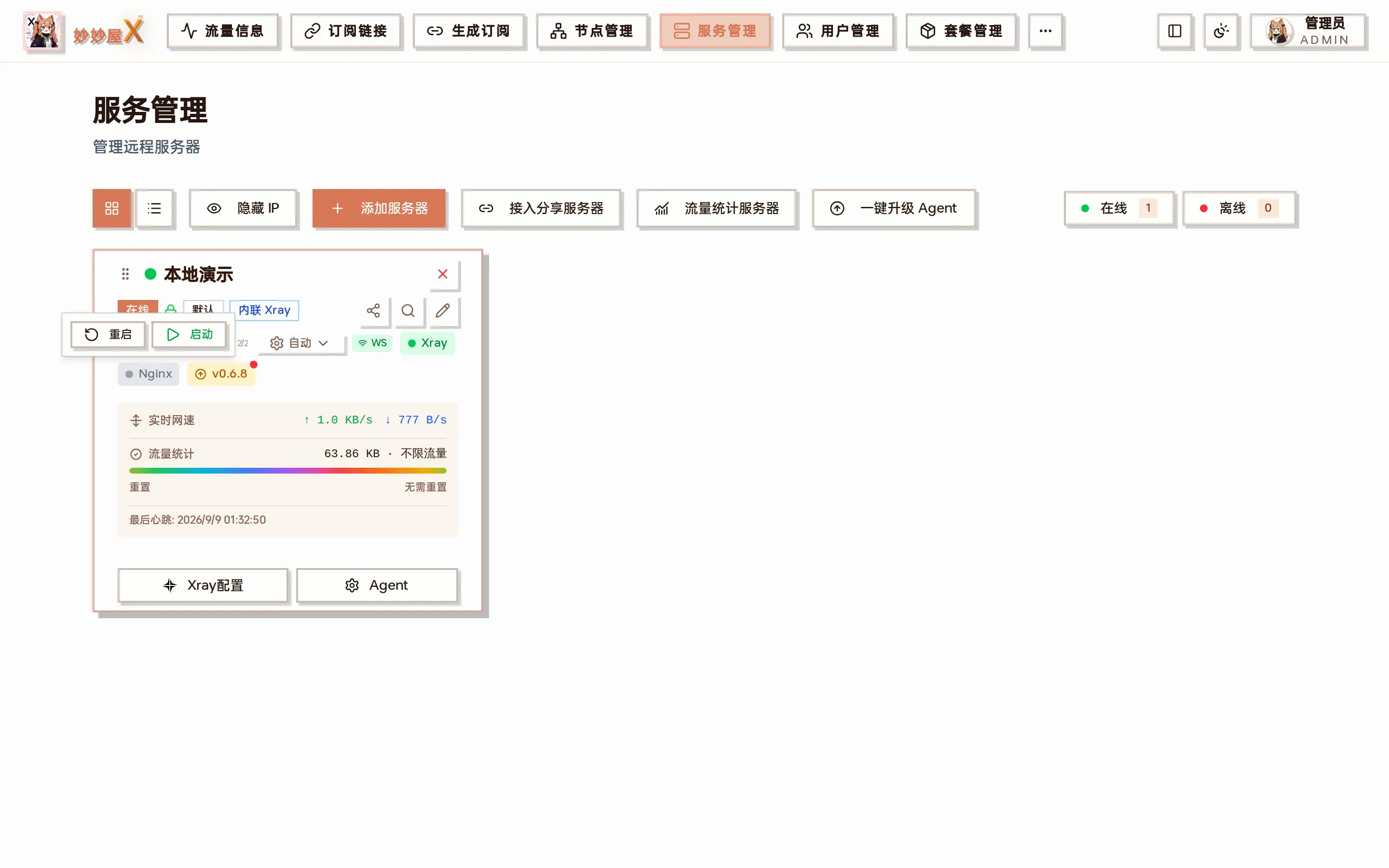
Clicking the Nginx badge: restart / start
Installing Xray
Section titled “Installing Xray”- Embedded Xray (PRO): xray-core ships inside the Agent, so installing the Agent is enough
- External Xray: the one-click Agent installer installs standalone Xray via XTLS/Xray-install; “Install Xray” is also available on the card
- Progress streams live over SSE
- Certificates are deployed automatically afterwards (if configured)
- Inbounds are scanned and synced to the node table afterwards
Installing Nginx
Section titled “Installing Nginx”Nginx provides TLS camouflage and forwards port 443 traffic to Xray.
- Servers with “Steal self” get Xray + Nginx installed automatically after the Agent installs
- With a server domain configured, the reverse proxy is set up during installation
- SSE streaming progress
- Certificates deployed automatically afterwards
- Sites are managed in “Agent → Websites”, see Nginx Websites
Service control
Section titled “Service control”| Action | Description |
|---|---|
| Start | Start Xray/Nginx |
| Stop | Stop Xray/Nginx |
| Restart | Restart Xray/Nginx (needed after config changes) |
| Uninstall | Remove Xray/Nginx completely |
| Scan | Scan service state and versions, sync inbounds to nodes |
The Xray management dialog shows the current version (e.g. Xray 26.3.27) and three badges: metrics, traffic stats and gRPC. All three must be green for traffic collection and remote management to work fully.
Config file management
Section titled “Config file management”The “Config” tab shows the complete Xray config.json for in-place editing; “Format” then “Save config” restarts Xray automatically. Before editing, check “Agent → Config history” for a snapshot so a broken config can be rolled back by pushing a previous version.
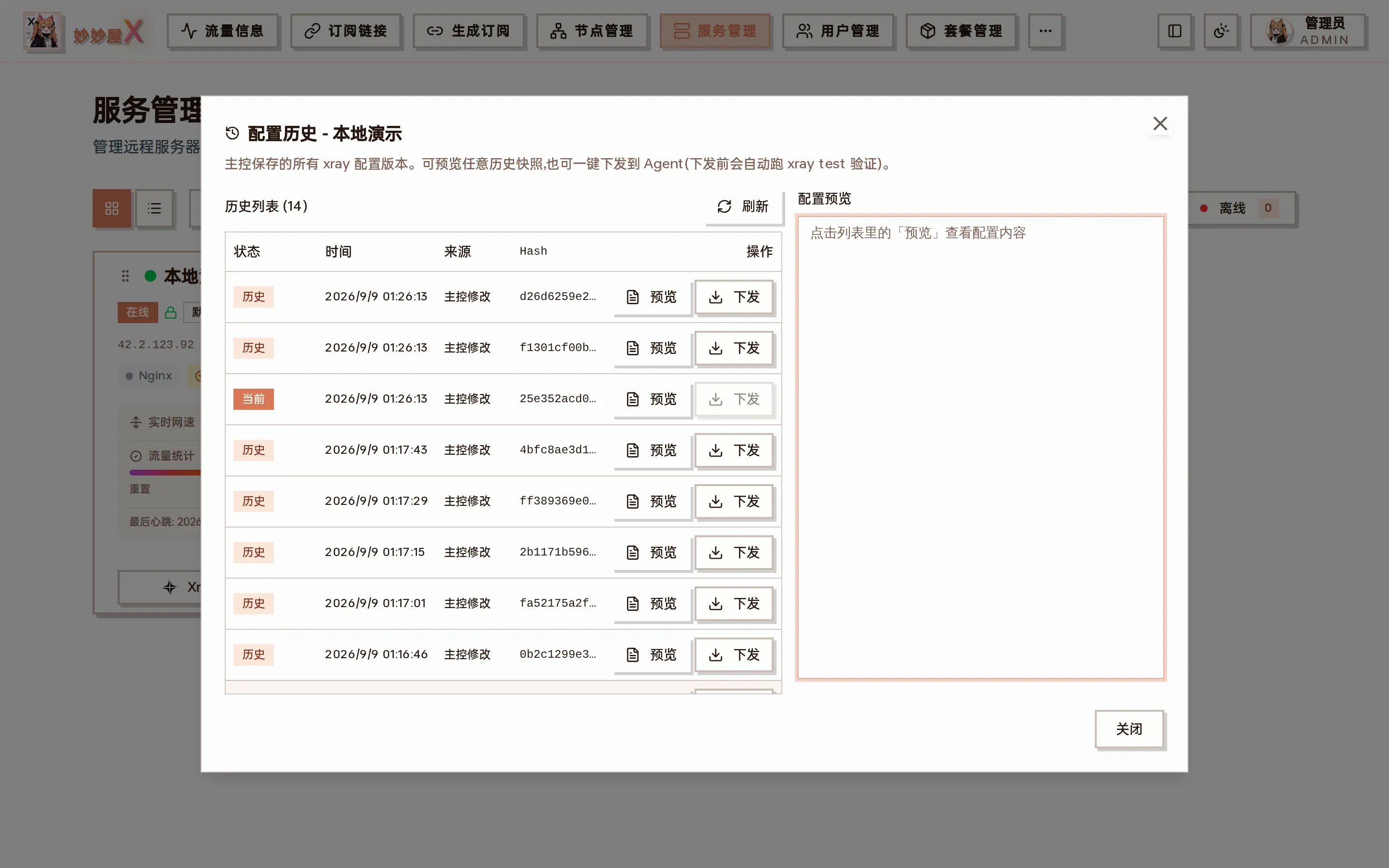
Config history: master changes and Agent reports are archived; preview or push (xray test runs before pushing)